Concur Instructions: Booking Guest Travel in Concur
Table of Contents
Overview
With the newest update to Concur, OSU employees may now utilize Concur to book travel for guests. If you have booked travel in Concur before, the process will seem familiar but will include a few additional steps to ensure the guest's name is on the reservations and tickets.
One step that may seem new to OSU employees, but has always been a requirement, is to submit a Pre-Trip Request for out-of-state or international guest travel. The Pre-Trip Request helps OSU fulfill our duty of care and helps travelers enroll in ISOS if traveling internationally.
If any changes or cancellations need to be made after booking guest travel through Concur, please work with CTP to make the necessary adjustments.
[Return to top]
Requirements
-
Traveler Information
- At minimum, must have the following information readily available from the traveler to book their travel in Concur:
- Title (Required for booking airfare, hotel, and/or lodging)
- Legal First Name (Required for booking airfare, hotel, and/or lodging)
- Middle Name on ID (Required for booking airfare only)
- Legal Last Name (Required for booking airfare, hotel, and/or lodging)
- Gender (Required for booking airfare only)
- Date of Birth (Required for booking airfare only)
- Known Traveler Number, if available (airfare only)
- DHS Redress Number, if available (airfare only)
- Phone (Required for booking airfare, hotel, and/or lodging)
- Email (Required for booking airfare, hotel, and/or lodging)
- At minimum, must have the following information readily available from the traveler to book their travel in Concur:
-
Out-of-State or International Travel
- Must have a fully approved Pre-Trip Request for ALL out-of-state and international travel
- The Pre-Trip Request ID number is required for booking in Concur
- Locate the Pre-Trip Request ID number before beginning to book travel, as you may not be able to access the request while booking travel
-
Travel to or Within Oregon
- A Pre-Trip Request is not required for travel to, or within, Oregon
- When prompted for a Pre-Trip Request ID number, please follow the instructions on the screen
- A Pre-Trip Request is not required for travel to, or within, Oregon
Starting the Booking Process in Concur for Guests
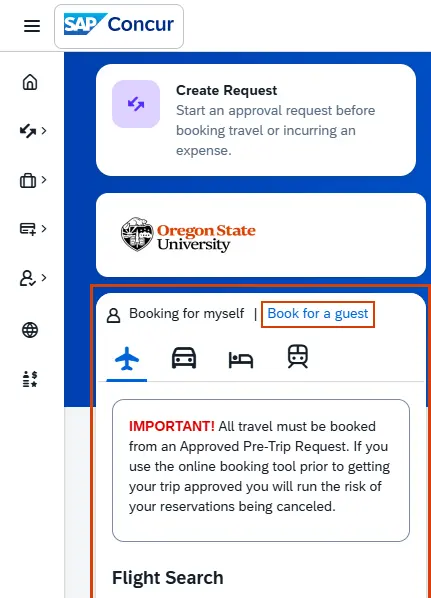
To begin booking travel for a guest, please use the Travel Search widget on the main Concur page (below the "Trip Booking. Reimagined." widget) and click Book for a guest.
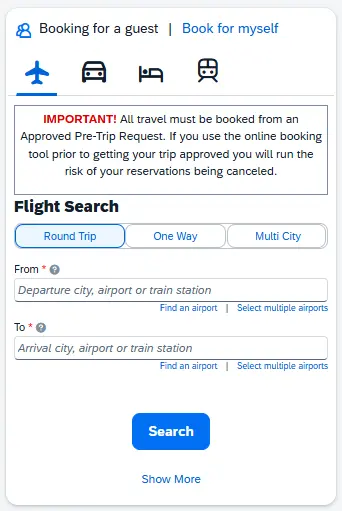
The Travel Search widget will refresh to allow you to book for a guest.
Booking Flights for a Guest
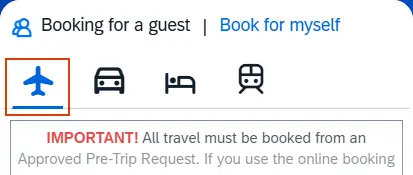
In the Travel Search widget, click the Flight icon to begin the search for guest flights.
In the Travel Search widget, select the type of flight: Round Trip, One-Way, or Multi-City.
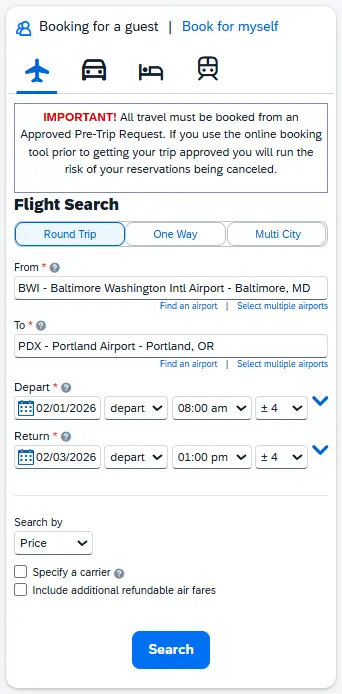
Fill out the departure and arrival airports, the dates of travel, and times of travel. Click the Search button.
The Select Flights screen prepopulates potential flights based on flight information you initially entered for your guest. The left side of the screen provides features to adjust and refine the available listed flights while the right side of the screen provides a matrix of airlines, stops, and rates with more information on the flights provided below.
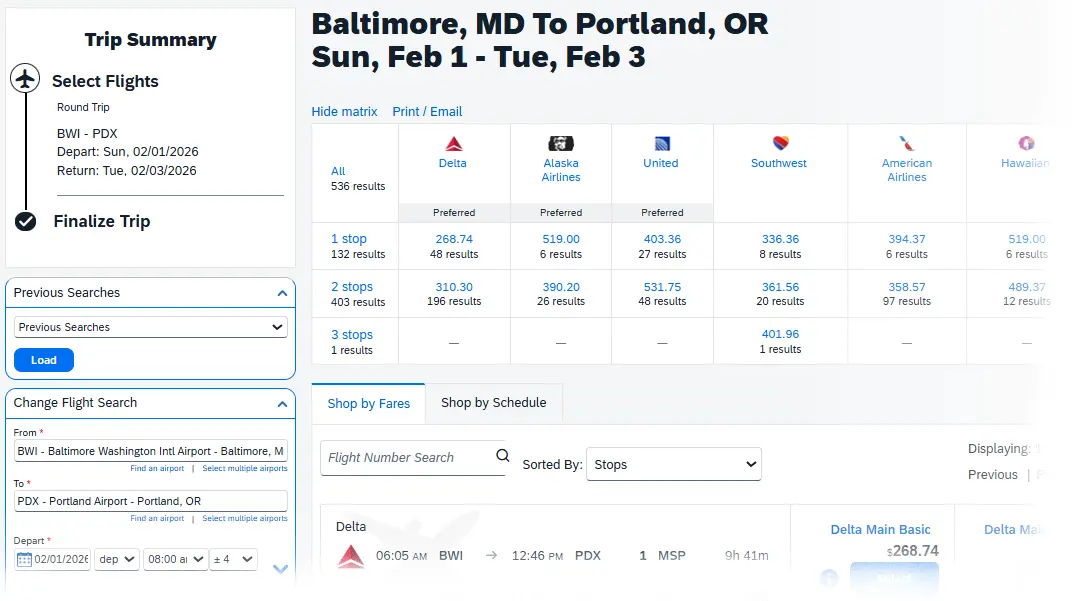
Concur allows you to refine and adjust your search to find and select the best option for your guest's needs.
Use the Change Flight Search feature to change and update preferences for airline travel. Click the downward caret next to Change Flight Search to expand the menu. The departing and arrival airports, dates, and times have been populated based on the initial search.
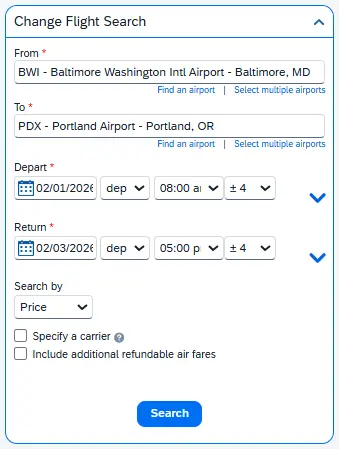
To update the flights and trains displayed based on the criteria you selected within the Change Search feature, click the Search button at the bottom of the feature. Remember, not all airlines fly all routes, so if you choose an airline and it does not appear on the results screen, it may not fly between your selected cities or it may not be available unless you book directly with the airline.
You can further refine your search by adjusting the departure and return times by using the sliders under the Depart and Return sections, as well as the Price section.
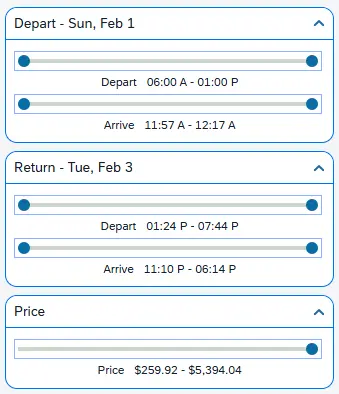
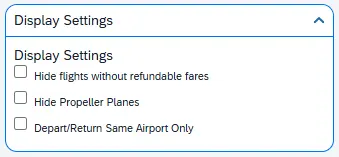
The Display Settings allows you to hide flights that are non-refundable or show flights that depart/return to the same airport only.
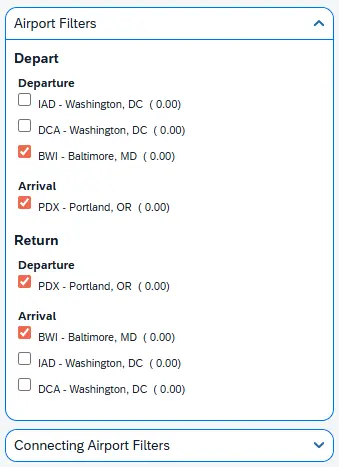
You can also include flights from neighboring airports in the search results by selecting nearby airports listed under the Airport Filters.
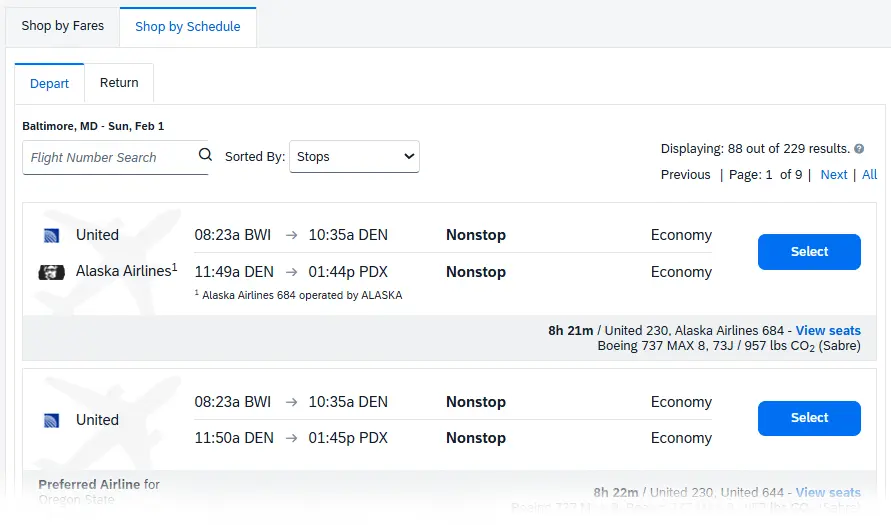
Below the matrix of available flights, there are two tabs to help you refine the search for your guest's flights. The Shop by Fares tab shows the cheapest options for travel and includes the prices. The Shop by Schedule has two sub-tabs tab, Depart and Return, which show the flights that meet your specified criteria, but do not include price or detailed information on fares; using this feature requires you to select your departing and returning flights individually.
You can learn more about flights and their associated fares & details by clicking the More Fares/Details link at the bottom of a flight result to view detailed information about the fares and flight.
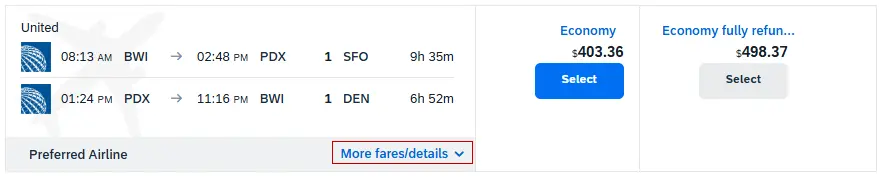
This provides information on fare options, information on refundability, a preview of available seats, and whether or not the flight meets OSU’s guidelines.
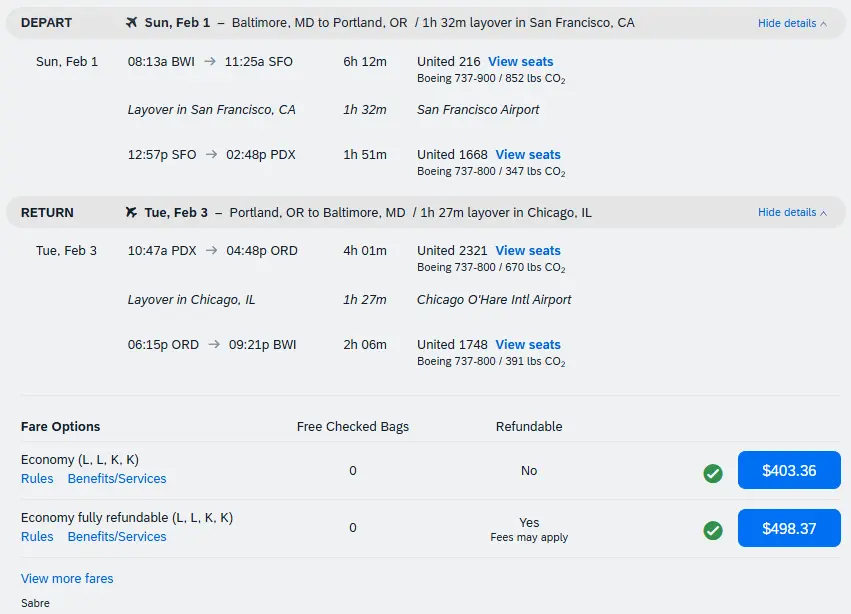
Note: We recommend avoiding restrictive airfare (e.g., basic economy rates, $49 flights) and non-refundable airfare when possible; OSU is typically unable to recapture costs if these types of flights are delayed or cancelled, resulting in lost or forfeited funds.
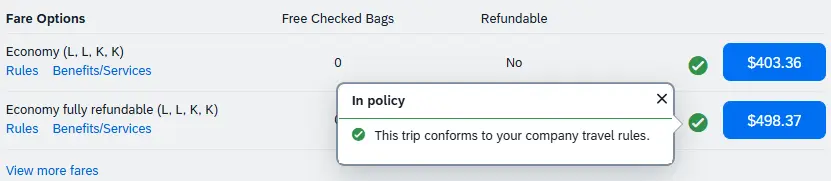
Next to the total cost of the flight is a green-circled check mark. If you click it a small popup window will appear that informs you that the green-circled check mark indicates that this flight conforms to OSU’s travel policy.
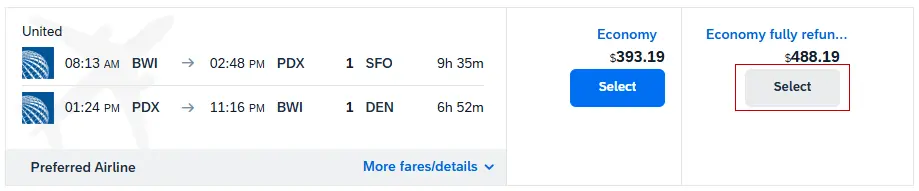
Once you have found a flight that meets your guest's travel needs, click the Select button underneath the fare to select the flight.
After selecting the flight(s), you will be taken to the Review and Reserve Flight page to review the selection, enter in traveler information, and confirm payment. This section will provide an overview of the dates and times of the flights, airlines, and travel time.
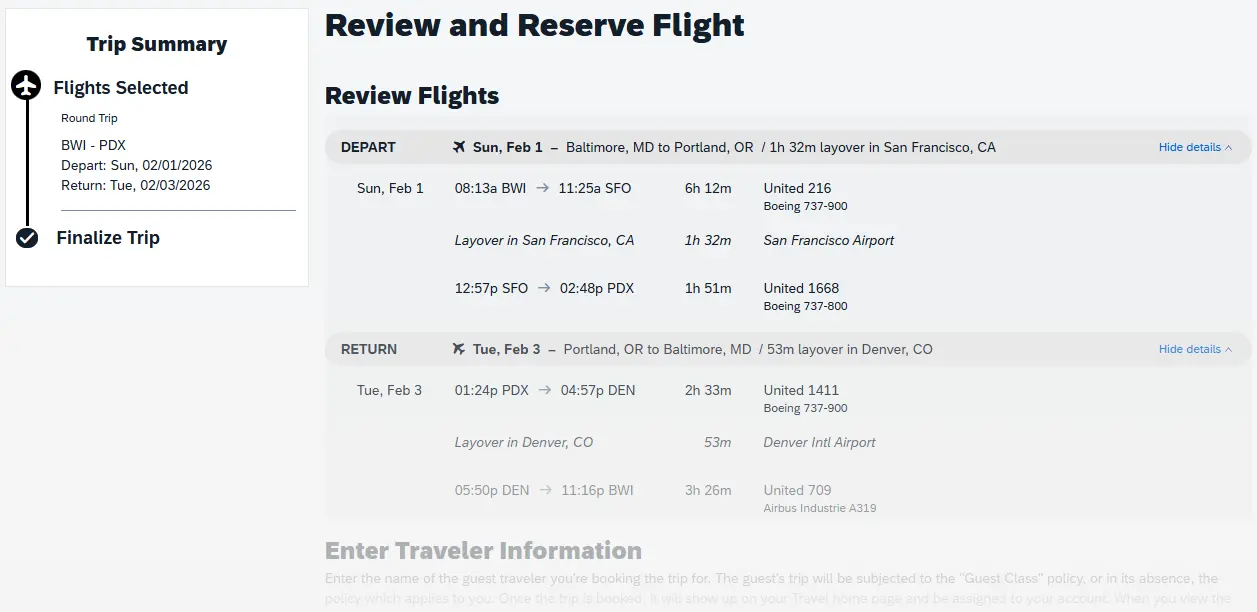
If everything looks correct, proceed to the Enter Traveler Information section.
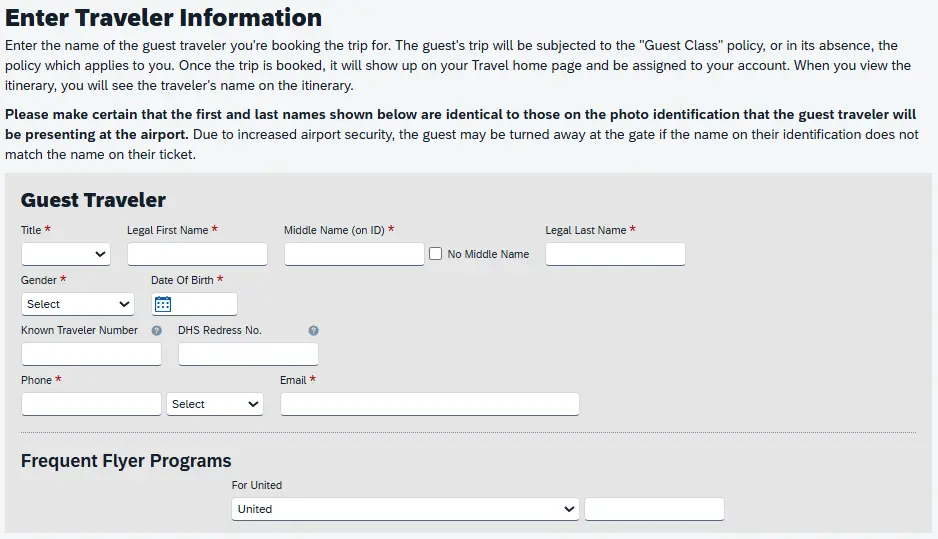
You will need to have the following information from the traveler in order to book their airfare.
- Title (Required)
- Legal First Name (Required)
- Middle Name on ID (Required)
- Legal Last Name (Required)
- Gender (Required)
- Date of Birth (Required)
- Known Traveler Number, if available
- DHS Redress Number, if available
- Phone (Required)
- Email (Required)
- Frequent Flyer Program, if available
Please ensure the guest's first and last names ensure match the photo identification that the guest traveler will present at the airport. Due to increased airport security, the guest may be turned away at the gate if the name of their identification does not match the name on their ticket.
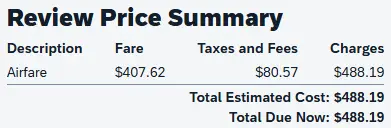
The Review Price Summary section will provide a breakdown of the total cost of the tickets, total cost of the associated taxes and fees, and the overall total cost.
Please review the Important Note on Seat Assignments section of this screen; selecting paid preferential seats will incur an additional cost unless your guest traveler has frequent flyer status with the airline.
You can skip over the Critical Information – Hotel Payment Options section since this applies to booking hotels in Concur.
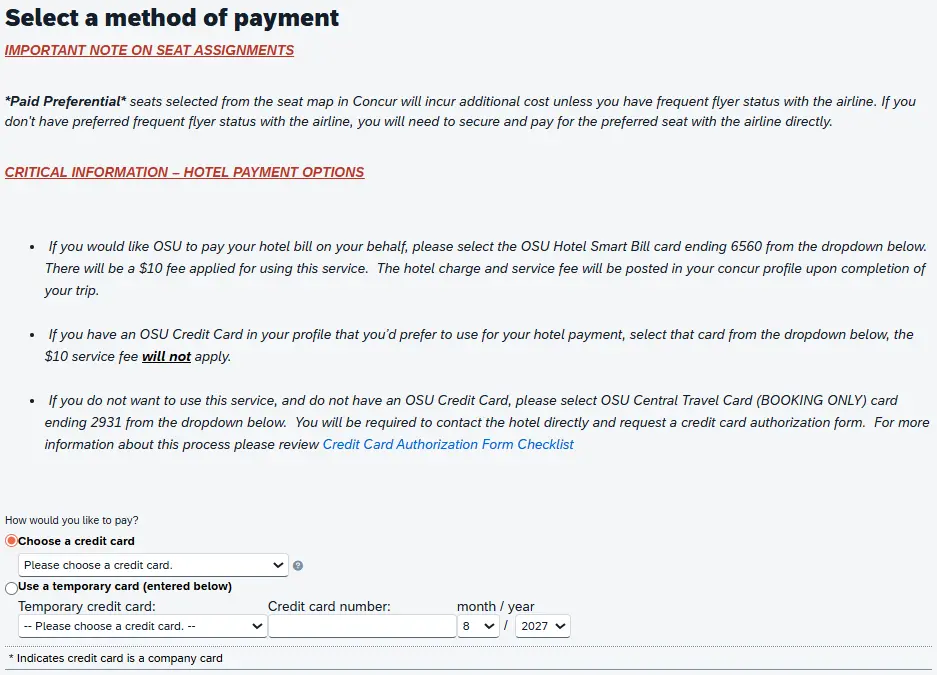
The OSU Ghost Card is the only available option for payment, and will need to be selected for the tickets to be issued. The tickets will be direct billed to the university when this option is selected.
While there is a section to enter in a temporary card, we do not recommend this option, even if you have an OSU credit card. The OSU Ghost Card is the appropriate choice for booking guest travel.
Click the Fare Rules and Restrictions link to read more about vendor conditions. These include but may not be limited to cancellation policy, rate rules, accepted credit cards, et cetera. Click the Hazardous Goods Policy to read more about the rules and exceptions governing the transportation of hazardous materials.

Once finished reviewing the sections, click the Reserve Flight and Continue button, or to revise the flights click the Back button.

After clicking Reserve Flight and Continue, you will be taken to the Travel Details screen for your guest's trip. You can either:
- Add on a rental car or a hotel to your guest's travel arrangements, or
- If you are done booking your guest's travel, proceed to Finalize and Confirm issue their tickets/reservations
Booking a Rental Car for Guest
In the Travel Search widget, click the Car icon to begin the search for rental cars for your guest.

In the Travel Search widget, select the Pick-up/Drop-off dates and times for the rental car using the calendar picker.
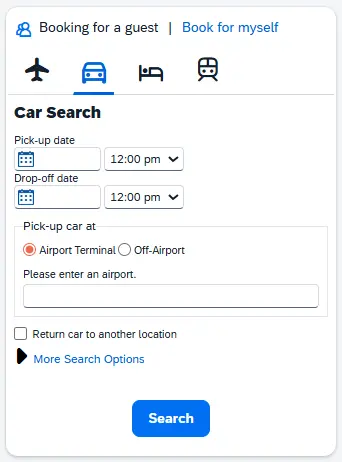
You can select the airport or off-airport location where your guest will pick up the vehicle. You can also select if the guest will return the rental car to a different location from where they picked up the car.
You can expand the More Search Options to refine your search criteria based on Car Type, Preferred rental car vendors, and other Car Vendors.
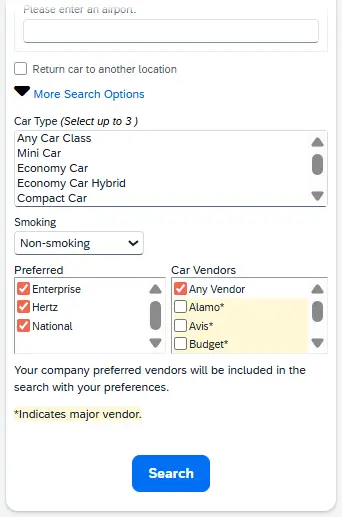
OSU has direct billing agreements with Enterprise, National, and Hertz and these companies are marked as preferred in Concur. If you select another rental car company your guest will need to be prepared to pay for the rental upon arrival at the agency.
Once you have entered in the required information for your guest's rental, click the Search button.
The initial results screen shows a matrix of rental car companies, as well as the rates for each company based on car type.
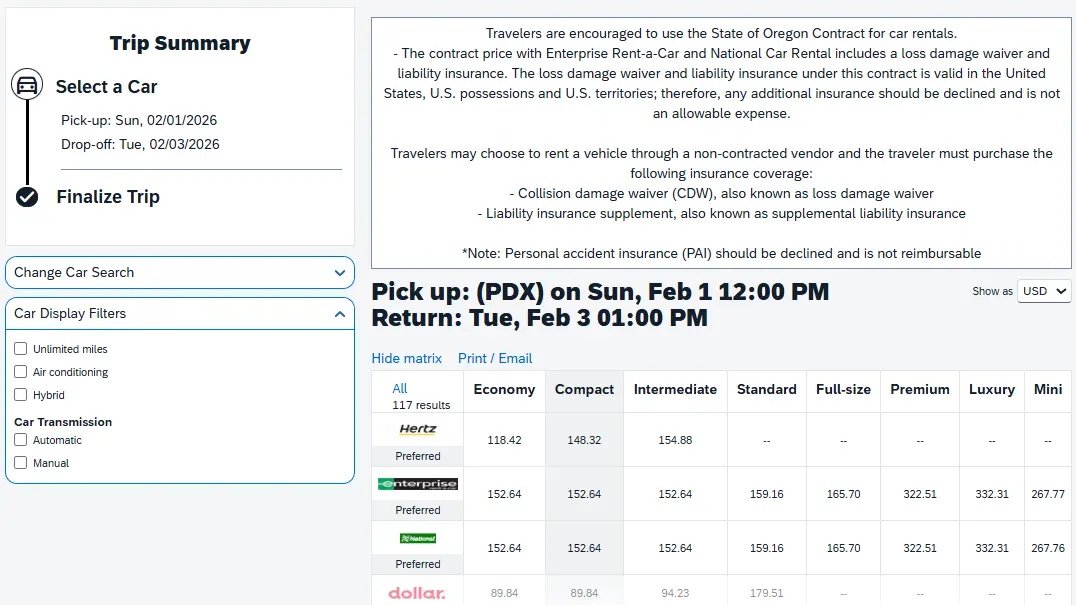
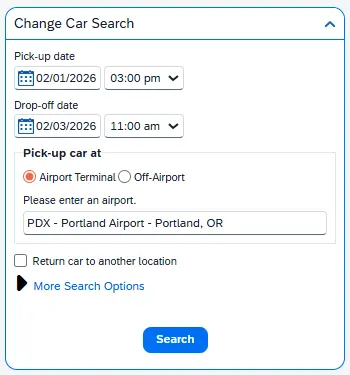
Concur allows you to refine and adjust your search to find and select the best option for your guest's needs. Within the Change Car Search section on the left side of the screen, you can adjust the pick-up/drop-off times. Once the appropriate changes are made, click the Search button.
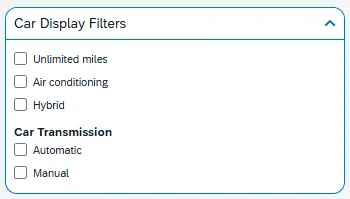
You can further refine your search using the Car Display Filters. Parameters you can search for rental car are: (1) unlimited miles, (2) air conditioning, (3) hybrid car-type, and (4) transmission type.
Once you have updated and refined your search, below the matrix of rental car companies’ rates, you will see the list of potential vehicles. The potential rental car listing defaults to sort by most policy compliant (either Economy or Compact) and lists our preferred vendors first. The rental’s descriptions list what type of transmission it has, where it can be picked up from, and how many passengers and pieces of luggage it can accommodate.
Once you have found the rental you would like to reserve for your guest, click the button showing the total cost of the rental to select the car.
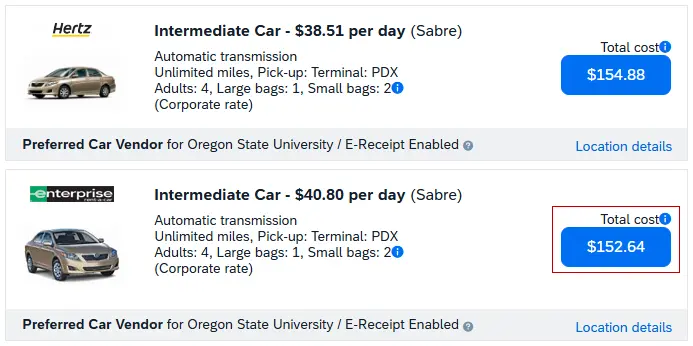
The Review and Reserve Car page provides an overview of the rental car you have selected for your guest. On this screen you can review the details of the rental car for your guest and enter in any needs or preferences to be communicated to the agency.
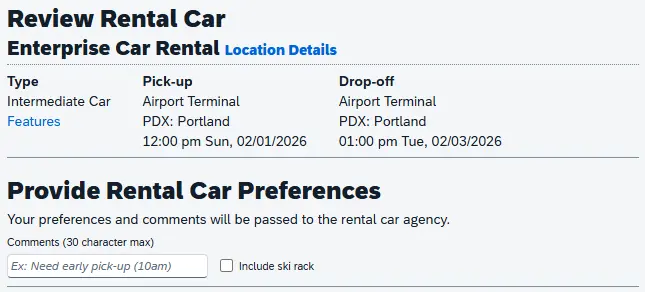
The information displayed lists:
- The type of car and a link for car features
- The rental car's Pick-up & Drop-off locations and details
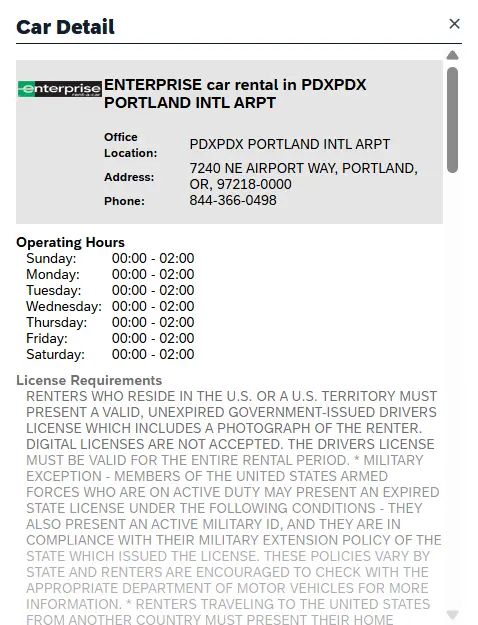
Click Location Details for other important information such as hours of operation and instructions about after-hours drop-offs.
Enter in any comments for the rental car company in the Comments field, if necessary.
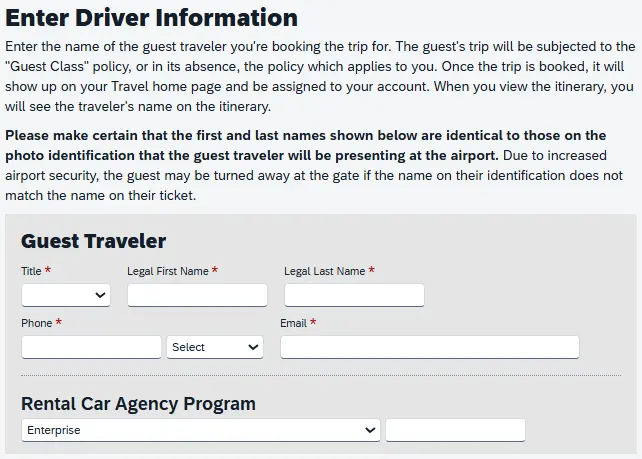
In the Enter Traveler Information section you will need to have the following information from the traveler in order to book their rental car:
- Title (Required)
- Legal First Name (Required)
- Legal Last Name (Required)
- Phone (Required)
- Email (Required)
- Rental Car Agency Program, if available
- Note: If you are selecting an Enterprise, National, or Hertz car rental and would like to have the rental direct billed to the university, please do not enter in any rewards number for the traveler as this can cause issues with direct billing when the guest picks up the vehicle.
In the Review Price Summary section you will see an overview of the rental car, including the Daily Rate, Dates of the rental, estimated Total, and Total Due Now.
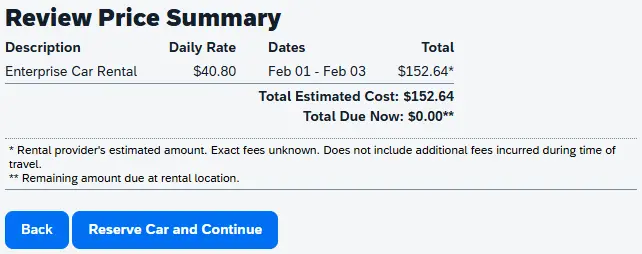
OSU has direct billing agreements with Enterprise, National, and Hertz. If you selected another rental car company your guest will need to be prepared to pay for the rental upon arrival at the agency; the cost of the rental car is a reimbursable expense for guests and requires a receipt.
Click the Reserve Car and Continue button, or to revise the car rental reservation click the Back button.
After clicking Reserve Car and Continue, you will be taken to the Travel Details screen for your guest's trip. You can either:
- Add on another rental car or a hotel to your guest's travel arrangements, or
- If you are done booking your guest's travel, proceed to Finalize and Confirm issue their tickets/reservations
Booking a Hotel for a Guest
In the Travel Search widget, click the Bed icon to begin the search for guest lodging.

In the Travel Search widget, select the Check-in and -out Dates for the hotel using the calendar picker.
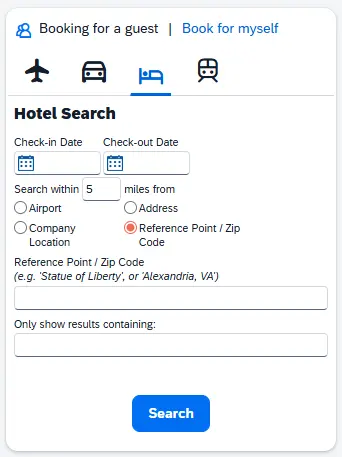
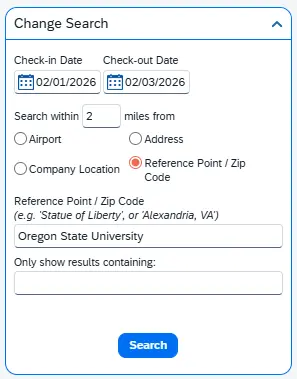
You can adjust the hotel search to search within a specified number of miles from an Airport, an Address, a Company Location, or a Reference Point/Zip Code. When you change the parameters of the hotel search to search for a specific reference point, a pop-up window will appear with the address of the location entered. Select Choose to verify that this is the address of the location.
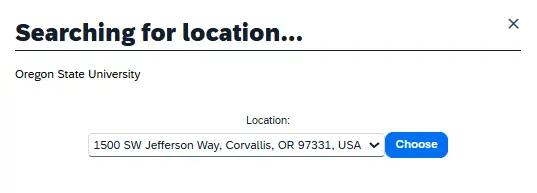
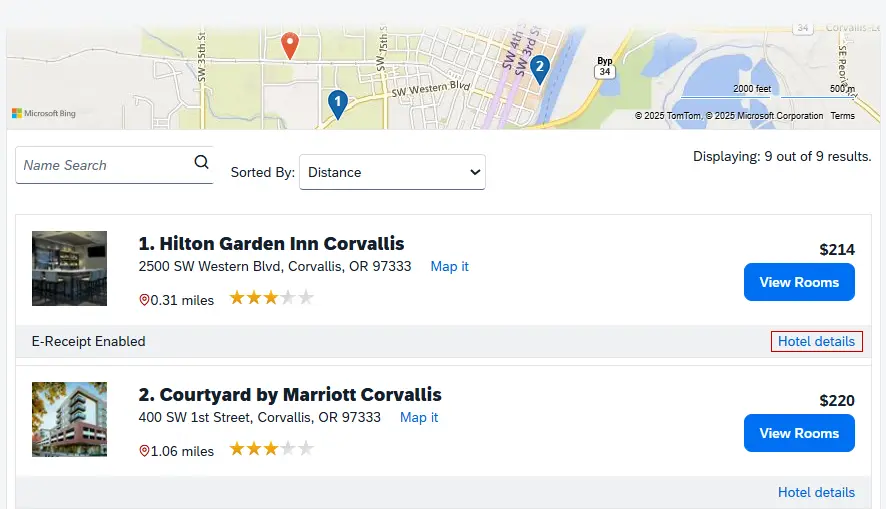
The hotel results will return, based on your entered criteria. A map with the location selected will show as a red beacon, with nearby hotels appearing as blue beacons.
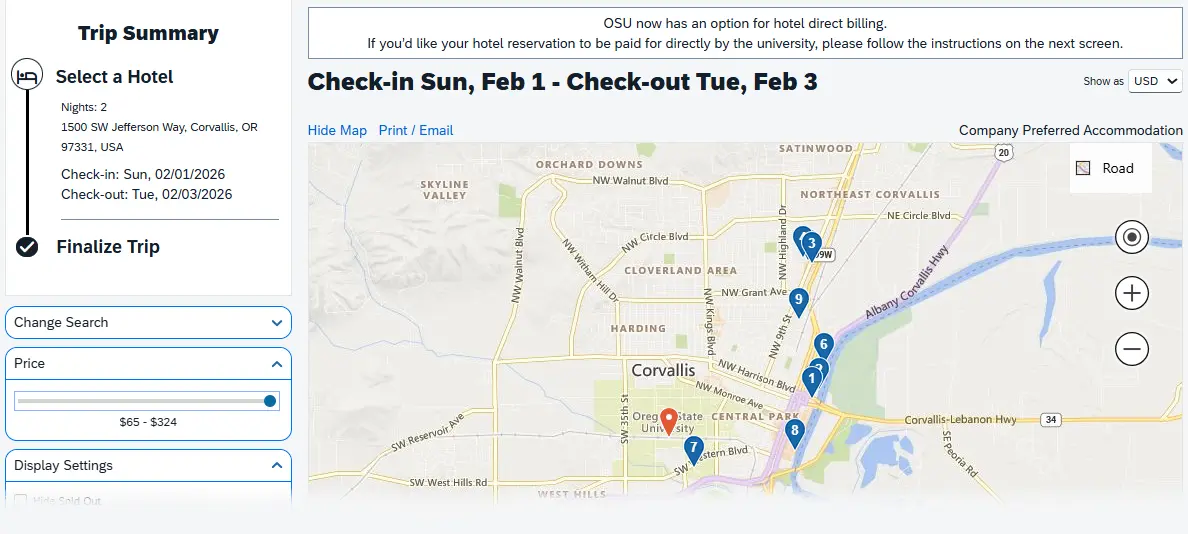
You can further refine the lodging results based on price, availability, hotel chain, and amenities on the Select a Hotel page. You can use the Change Search feature to adjust the dates or location of the hotel, if needed.
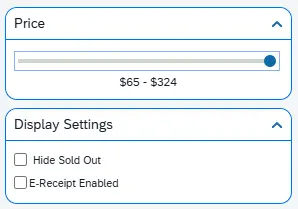
Within the Price setting you can use the slide bar to narrow or expand the lodging results based on nightly rates within a specific price range. Under Display Settings you can hide results for lodging that is fully booked or sold out and you can select lodging that provides an E-receipt if you have opted into receiving E-receipts in Concur. Hotels with E-Receipt Enabled means that the itinerary or bill should be automatically added to your Concur profile to make preparing your Travel Expense Report easier once you return from your trip.
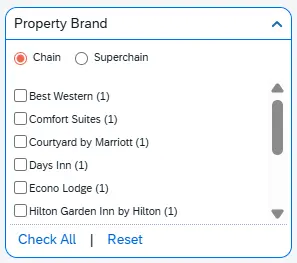
The Property Brand setting allows you to limit your search for available chains or superchains of hotels in the area.
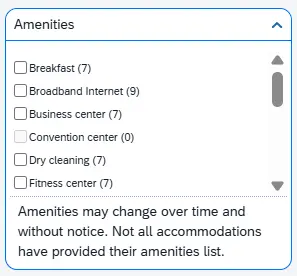
The Amenities setting allows you to refine your search to include features and conveniences offered by hotels, including rooms that are wheelchair accessible. Amenities may change over time and without notice and not all accommodations have provided their amenities list.
After refining your search, your list of lodging possibilities will update based on your selections. Below the map at the top of the Select a Hotel page, the name of the hotels, their address, rating, and lowest available rate will be listed. Once you have found a hotel that meets your travel needs, click the button for the nightly room rate next to the room you would like to book.
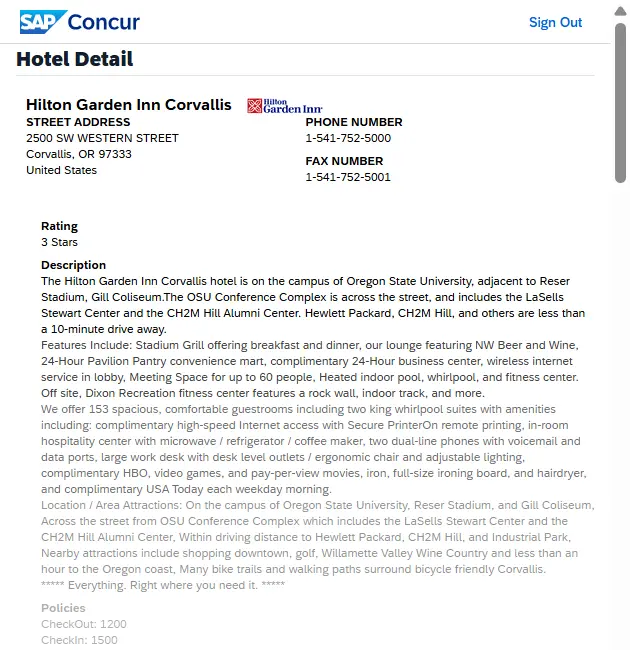
The Hotel Details link, in the bottom right corner of the hotel listing, will open a popup window where you can learn more about what the hotel generally offers.
Available details may vary, based on what information the hotel has supplied. The details will typically include the address, contact information, rating, description, check-in/out times, and other relevant information.
To see available rooms, descriptions, and rates click View Rooms button in the hotel listing.
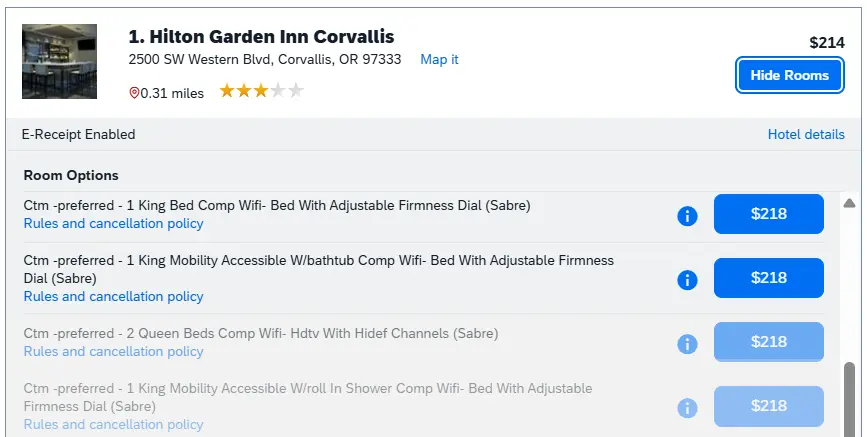
The Information button (a blue circle around a lowercase letter i) notifies you that there is more information about this room. If you click on it, a small Info popup window will appear to show if the room is in policy and if the rates change over the duration of the stay.

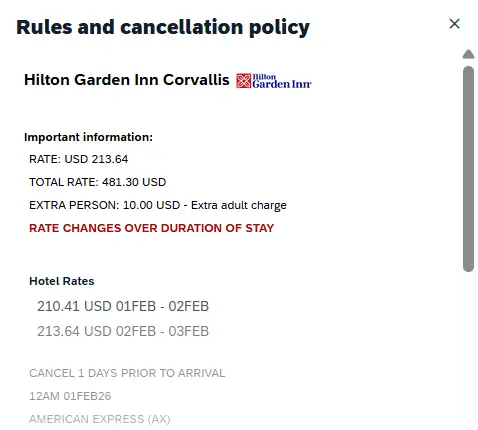
Click Rules & Cancellation Policy below the description of the room; a pop-up window will appear with important information such as fluctuations in rates over the stay & cancellation policies.
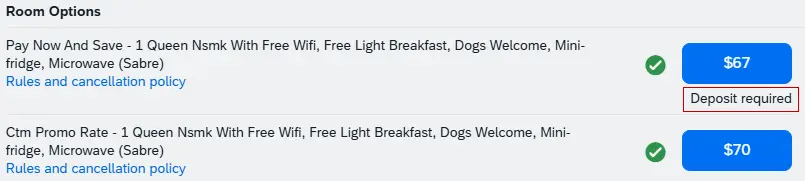
If a hotel requires a deposit, the system will let you know by placing Deposit required underneath the room’s rate. The deposit will be charged once you finalize your guest's reservation.
After selecting the room, you will be taken to the Review and Reserve Hotel page to enter, review, & verify information related to your guest's stay.
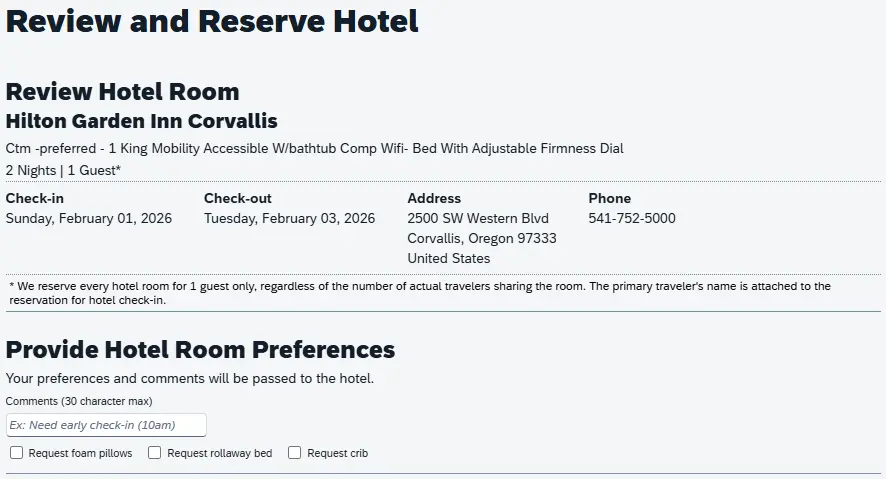
Under the Review Hotel Room section, the information displayed lists:
- The type of room
- Check-in and Check-out dates
- Address & phone number of the hotel
In the Provide Hotel Room Preferences section, you can enter in any preferences or comments to be communicated to the hotel, such as early check-in. You can also select specific requests such as foam pillows, rollaway beds, and/or a crib,
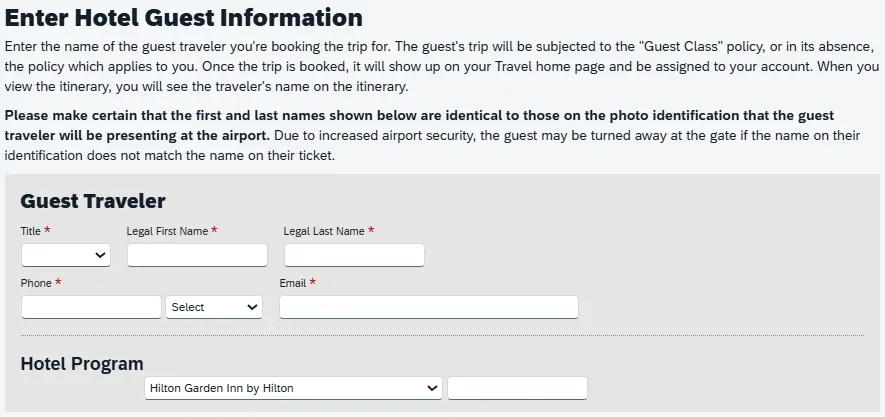
In the Enter Hotel Guest Information section, you will need to have the following information from the traveler in order to reserve their hotel room.
- Title (Required)
- Legal First Name (Required)
- Legal Last Name (Required)
- Phone (Required)
- Email (Required)
- Hotel Program, if available
If your guest is a member of a travel rewards program for the hotel, you can provide that rewards membership number that information in the Hotel Program section.
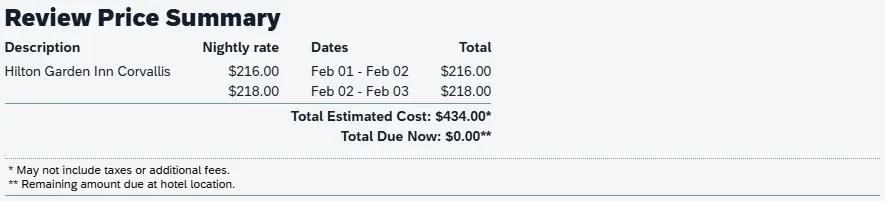
In the Review Price Summary section you will see an overview of the hotel cost, including the Nightly Rate, Dates of stay, estimated Total Estimated Cost, and Total Due Now.
In the Select a Method of Payment section you can review the available hotel payment options. You will need to select one of the following payment forms from the Form of Payment dropdown menu in order to reserve the hotel room for your guest. We recommend selecting the OSU Hotel Smart Bill Card if you do not have an OSU credit card.
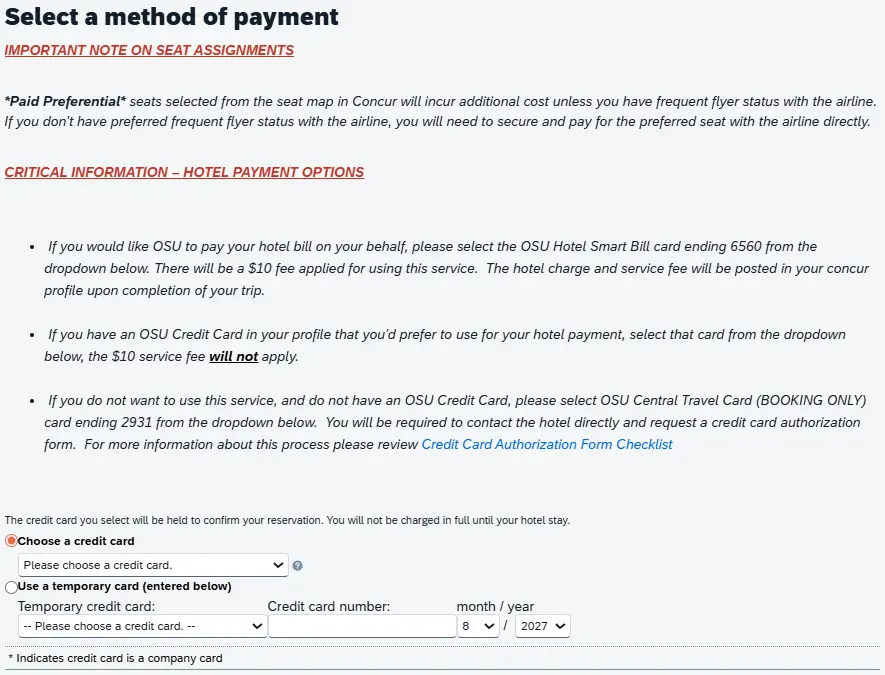
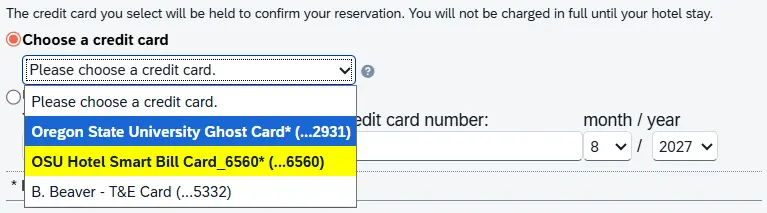
From the Choose a Credit Card dropdown menu, you can select the following options:
- Oregon State University Ghost Card - If you do not opt into Smart Bill and you do not have an OSU Credit Card then select this option.
- You will need to contact the hotel directly to obtain a Credit Card Authorization Form and complete the form. Once complete, send the form to [email protected] for our office to sign and return to the hotel. Refer to our checklist on obtaining a Credit Card Authorization Form from the hotel.
- OSU Hotel Smart Bill Card - OSU will pay for the hotel on behalf of your guest if you select this card; the fee is $10.00 per hotel.
- Your OSU Credit Card - Your university credit card must be added to your Concur profile for this to be an available option.
- If you select this option you will need to take additional steps with the hotel to obtain a Credit Card Authorization Form to ensure your credit card is charged for the guest's room upon check-in/out.
- If you select this option you will need to take additional steps with the hotel to obtain a Credit Card Authorization Form to ensure your credit card is charged for the guest's room upon check-in/out.
While there is a section to enter in a temporary card, we do not recommend this option even if you have an OSU credit card.
Under the Accept Rate Details and Cancellation Policy you will need to review the hotel's rate rules, restrictions, and cancellation policy.
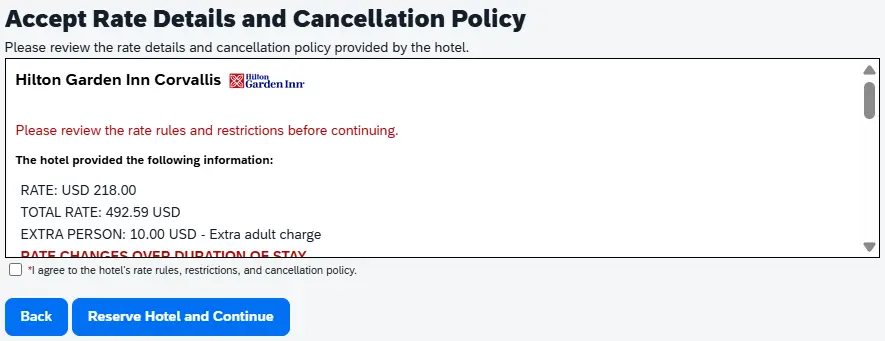
Check the I agree to the hotel's rate rules, restrictions, and cancellation policy checkbox.
Click Reserve Hotel and Continue, or to revise your hotel selection, click the Back button.

After clicking Reserve Hotel and Continue, you will be taken to the Travel Details screen for your guest's trip. You can either:
- Add on a rental car or another hotel to your guest's travel arrangements, or
- If you are done booking your guest's travel, proceed to Finalize and Confirm issue their tickets/reservations
Need to Add a Rental Car or Hotel for Your Guest?
After selecting & reserving either a flight, a rental car, or a hotel, you will be taken to the Travel Details screen. If you need to add additional rental cars or hotels to your guest's travel, you can do so from the Trip Overview section.
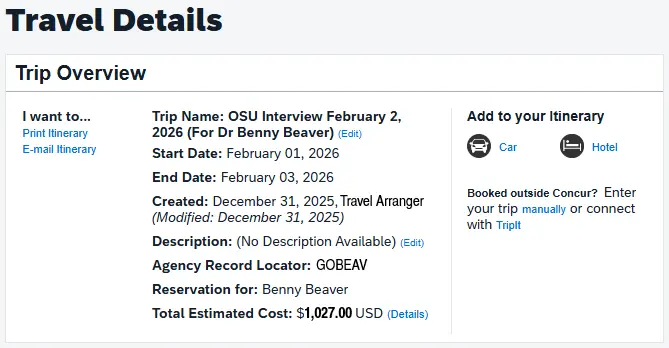
Click either the Car icon to add a rental car or click the Bed icon to add a hotel, and you will be taken to the appropriate guest booking screen in Concur.
Review the section on Booking Car Rentals for your guest, and/or review the section on Booking Hotels for your guest to walk through the process. After you have added the necessary travel accommodations, you will return to the Finalize and Confirm Booking screen.
[Return to top]
Done Booking Travel for Your Guest?
You will need to Finalize and Confirm Booking your guest's booking to review and verify the travel itinerary, including reservations and tickets. There are three screens to review before travel will be confirmed and any tickets issued for your guest's travel:
- Review Travel Details
- Enter Trip Information, and
- Submit Trip Confirmation
The first step in finalizing your guest's trip is to review the travel details. The entire trip itinerary for your guest will be displayed on the Travel Details screen: the trip overview, your guest's trip’s reservations (flights, car rentals, hotels), and total estimated cost.
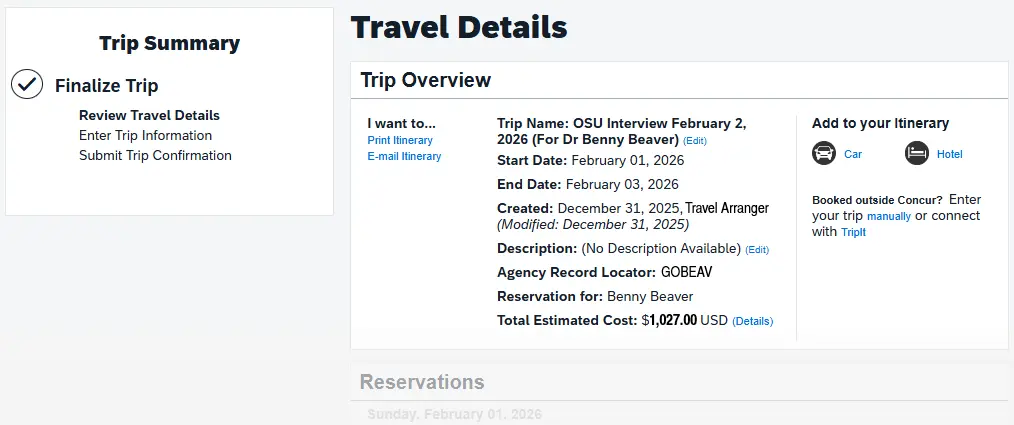
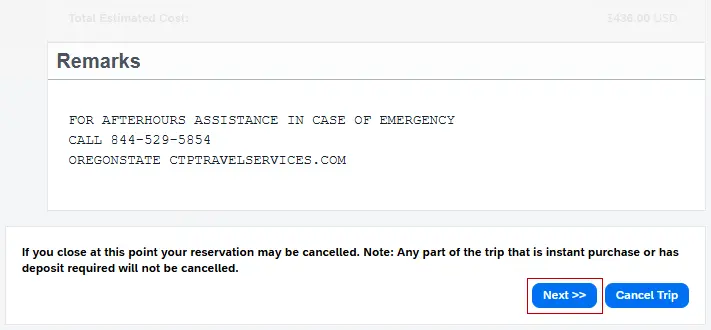
After reviewing the overview & reservations, you can select Cancel Trip if you need to make any changes for your guest's travel. If no changes or additions are needed, click the Next >> button to proceed.
On the Trip Booking Information screen, you will need to review the Trip Name and Trip Description for your guest's travel.
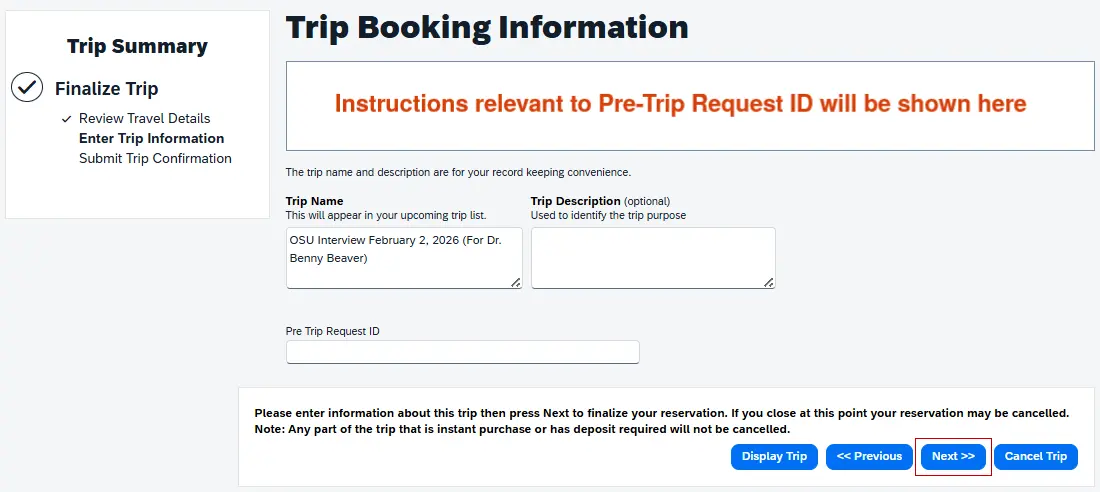
We recommend updating the Trip Name with something you will immediately recognize (i.e., B.Beaver - Assoc Prof Interview Feb 2026), otherwise it will default to the description listed. The Trip Description is optional, but may be helpful for future reference.
You will need to enter your guest's Pre-Trip Request ID in the field if they are traveling out-of-state or internationally. If your guest is traveling in-state, please follow the instructions at the top of the page. This field is required in order to proceed with confirming your guest's reservations and issuing tickets for their travel.
Once you are done reviewing and updating, click the Next>> button to proceed to the last finalization screen.
Your guest's entire trip itinerary will be displayed on the Trip Confirmation screen. This is the last step to finalize their travel. At the end of the itinerary, you will need to confirm the booking to have their reservations confirmed and any tickets for airfare issued.
The first section will be Trip Overview, which displays their trip name, travel dates, who created the trip (i.e., a delegate), description, the passenger’s information, and total estimated cost.
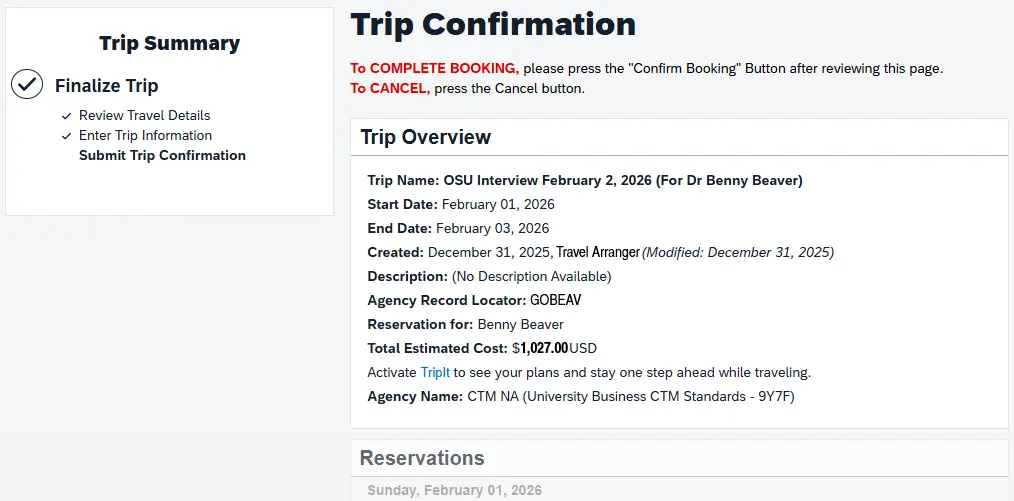
The second section will be their trip’s Reservations, which displays the details of your guest's flight(s), car rental, and hotel reservations in chronological order.
The final sections are Total Estimated Cost and Remarks. The Total Estimated Cost breaks down the costs by each reservation, and the Remarks section includes after hours emergency contact information for Corporate Travel Planners (CTP).
The last step to finalize your trip and book is to click the Confirm Booking>> button. Within an hour, you and your guest will receive an automated email with a copy of their ticketed itinerary that includes information on the items you booked for the guest through Concur.