

Concur Instructions: Booking a Rental Car in Concur
Table of Contents
- Overview
- Requirements
- Steps to Book Rental Car in Concur
- Related Information
Overview
Only Need a Rental Car?
If you only need to rent a car, we recommend using OSU's direct bill portals for Enterprise Rent-a-Car/National Car Rental or Hertz Car Rental instead of Concur--it will save you time and a $5.00 agency booking fee! For travel outside the state of Oregon, a pre-trip request in Concur is still required, but you do not need to book the rental car through Concur.
Using OSU's Preferred Rental Car Companies
OSU has negotiated contracts and direct billing agreements in place with Enterprise Rent-a-Car/National Car Rental and Hertz Car Rental companies. This means that if you select one of these companies for a domestic rental car, no payment will be required for the rental car when the traveler arrives for pick-up at the rental car agency (but you may need to provide a credit card for incidentals upon check-in). Additionally, selecting one of these companies for the rental car allows the traveler to access our specifically negotiated discounts and benefits for official university travel and opts the traveler into the required rental insurance.
[Return to top]
Requirements
-
Legal Name
- Must verify that your legal name is listed in your Concur User Profile
- Is your name listed incorrectly in Concur? HR Support Services can assist you in updating your legal name in Banner. It will take an overnight process for your updated name to load into Concur, so if you need to book travel immediately please reach out to our office.
-
Out-of-State or International Travel
- Must have a fully approved Pre-Trip Request for ALL out-of-state and international travel
- Your Pre-Trip Request ID number is required for booking in Concur
- Locate your Pre-Trip Request ID number before beginning to book travel, as you may not be able to access the request while booking travel
-
Travel to or Within Oregon
- A Pre-Trip Request is not required for travel to, or within, Oregon
- When prompted for a Pre-Trip Request ID number, please follow the instructions on the screen
- A Pre-Trip Request is not required for travel to, or within, Oregon
Step 1: Start the Booking Process
You will now be able to begin the travel booking process, or obtain cost estimates costs for flights, hotels, and rental cars, from the main Concur homepage.
While you will no longer book travel from your approved Pre-Trip Request, a fully approved Pre-Trip Request is required for all out-of-state and international travel. To book travel through Concur and you will need the Pre-Trip Request ID Number in order to confirm and finalize the travel you have selected. Before beginning to book travel, be sure to locate your Pre-Trip Request ID number, as you may not be able to access the request while booking travel. A Pre-Trip Request is not required for travel to, or within, Oregon; please follow the instructions on the screen when prompted for the Pre-Trip Request ID number when booking in Concur.
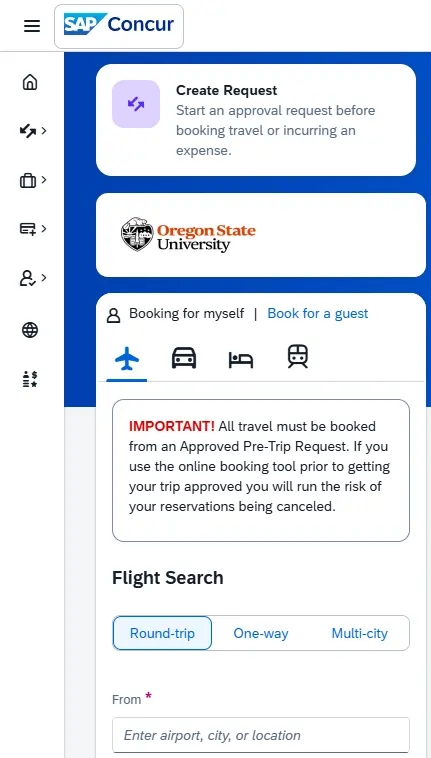
In the Trip Search widget on the main Concur homepage, make sure that Booking for myself is selected; please note that we have specific instructions for booking guest travel in Concur.
Step 2: Search for a Rental Car
In the Trip Search widget, click the Car icon to begin the search for your rental car.

When searching for a car, enter text to help refine a list of options for the pick-up and drop off locations. Predictive text will suggest locations as you enter the first few letters.
Select the Pick-Up and Drop-Off locations from the dropdown lists.

If you plan to pick-up or drop-off at the airport, please list the name of airport (instead of the city) so your search results include options for that airport location.
Select the Dates for pick-up and drop-off by using the calendar picker. The Dates are pre-populated with the dates for tomorrow and the next day, respectively.

The default for both Pickup Time and Drop-Off Time is set to 10:00 am, and can be updated by clicking the Pickup Time or Drop-Off Time and using the dropdown menus to select hour, quarter hour, and morning or evening time. Click OK to update the times for the search.

After filling out the search fields, once you are ready to review potential rental cars, click Search Rental Cars.

Step 3: Select a Rental Car
To select a rental car on the web or mobile app, review the search results page.

Your search criteria is indicated at the top of the search results page. To edit your search criteria, click Edit Search. Here you can change the Pickup and/or Drop-Off locations, Dates of your rental, and Pickup Time and/or Drop-Off Time.

To update your search, make the necessary changes and click Search to refresh your results, or click Cancel to return to your original results.

You can filter your rental car results by clicking All Filters and selecting one or more of the following filters:
- Category: the vehicle size categories, such as Compact, Intermediate, Luxury, or Standard, included in the search results.
- Type: the vehicle body style, such as van, SUV, pickup, or station wagon, included in the search results.
- Warning: While 15-passenger vans may appear in searches, you should not select a 15-passenger van as those are not permitted due to safety advisories
- Rental Company: the rental car companies included in the search results.
- Specifications: the car specifications, such as Electric, Hybrid, Automatic, Manual, included in the search results.
- Emissions
- For more information on how sustainability data is calculated for SAP Concur, please visit Thrust Carbon.
- E-receipts

Car rental results from our preferred rental companies, Enterprise/National and Hertz, are prioritized in the sort-by options. Click Sort by to sort through the following options:
- Category: sorts results by the vehicle size categories.
- Shortest Distance: sorts results by closest location.
- Lowest Emissions: sorts results by lowest emissions.
- Policy Compliance: sorts results by most compliant.
- Preferred Rental Company: sorts results by most preferred.
- Lowest Price: sorts results by total cost.

Alternatively, you can locate an option using Map View.

A pin icon indicates the location of the car rental provider. If pins overlap, use the zoom function to focus closer on the specific area and separate the pins. Click any priced location to see the following information for that provider:
- Rental location address
- Distance in miles or kilometers from the point of origin

The displayed prices include all applicable fees and taxes. Once you have determined a suitable option for your needs, click the Select button.

Step 4: Review and Book
To review your selected car rental on the web or mobile app, on the Review and Book page, confirm your booking specifications, such as rental car, pickup and drop-off locations and dates, traveler information, and payment.
If the selected rental violates a policy rule, the Travel Policy section displays a warning message. Provide a reason for the travel policy violation.

This section provides an overview of the car rental you have selected.

The information displayed lists:
- The selected car’s attributes and booking specifications (i.e., number of seats, bag capacity, transmission type, carbon emissions, mileage allowance)
- Rental car pick-up and drop-off details
Click Rental Station Details for other important information such as hours of operation and instructions about after-hours drop-offs.

In the Traveler Information section, review your contact information and modify it if required.

- Name on Reservation
- Your First Name and Last Name cannot be edited on this screen.
- You can add a Middle Name by clicking Edit Information, but updates to your First Name or Last Name must be made before booking tickets, otherwise you may be turned away at the gate if the name on your tickets does not match the name on your presented identification.
- Phone (Required)
- Select your phone number from the dropdown menu. If you have not provided a phone number in your Concur profile, click Edit Information to add your Work Phone, Home Phone, and Mobile Phone numbers.
- Email (Required)
- Select your email address from the dropdown menu. We strongly recommended selecting your OregonState.edu email address if you have other personal email addresses associated with your Concur profile.
- Frequent Traveler Account
- If you have a Frequent Traveler Account associated with the agency you have selected a rental with, then your account information will show here. You can click Add Frequent Traveler Account to link your account number with your selected flights.
- Note: If you select a car rental through Enterprise/National or Hertz, you will not be able to associate any Frequent Traveler Account you may have as it causes issues with direct billing. If you select a car rental provider other than Enterprise/National or Hertz, then you will be able to associate your Frequent Traveler Account number with the reservation.
Note: Airport-based car rentals display a required Flight Number field, so that rental car companies can track changes to pick up times due to flight
In the Rental Car Preferences section, in the Comments field, enter any comments for the rental car company, if necessary.

In the Estimated Total Cost section, review the charges for the rental and your Form of Payment.

If you have selected an Enterprise/National or Hertz car rental, then you will not need to select a Form of Payment; direct billing is set up with Enterprise/National and Hertz, which will be used for this booking.

If you selected a different car rental company, you will need to select a form of payment.

Click the Rate rules and restrictions hyperlink at the bottom of the page to read more about vendor conditions. These include but may not be limited to age restrictions, cancellation or no show policies, rental deposits, cross border/territorial restrictions, vehicle return, refueling policy, insurance and protection, and other services.

Click the Book and Continue button, or to revise your rental car selection click Change Selection.
[Return to top]
Step 5: Continue Booking Travel or Finalize & Confirm Your Booking
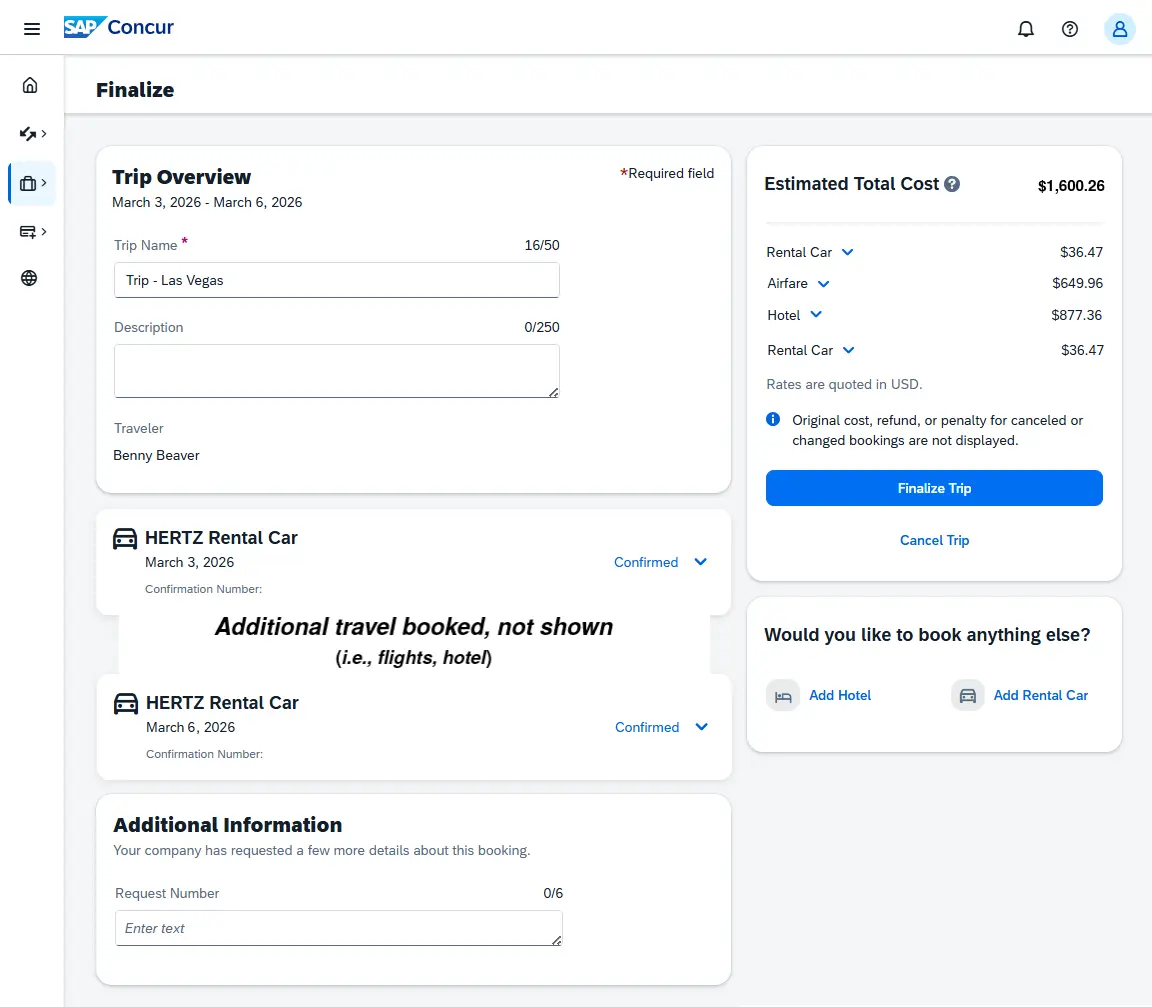
After clicking the Book and Continue button, you will be taken to the Finalize screen. On this screen are the:
- Trip Overview section
- The entire trip itinerary (i.e., flights, rental cars, & hotels)
- Additional Information section
- Estimated Total Cost section, and
- Options to Add Hotel and Add Rental Car, if needed
Need to Add a Hotel or Another Rental Car?
On the Finalize screen you have the option to add a hotel and/or rental car to your trip. If you need to add a flight, you can add the flight separately during a different travel booking session.
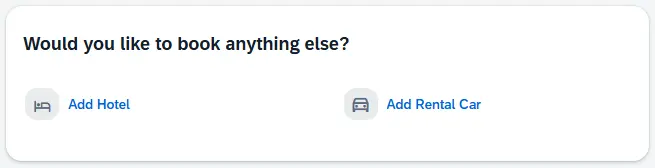
Click the Add Hotel link or the Add Rental Car link to add a reservation to your trip. Below are instructions to walk you through the process of booking those travel arrangements in Concur:
Ready to Finalize & Confirm Your Trip?
Once you are done making your travel selections in Concur, you will need to review and update the Finalize screen before your tickets will be issued. Your entire trip’s itinerary will be displayed on this screen: the trip overview, your trip’s reservations in chronological order (i.e., flights, car rentals, hotels) & confirmation numbers, and total estimated cost.
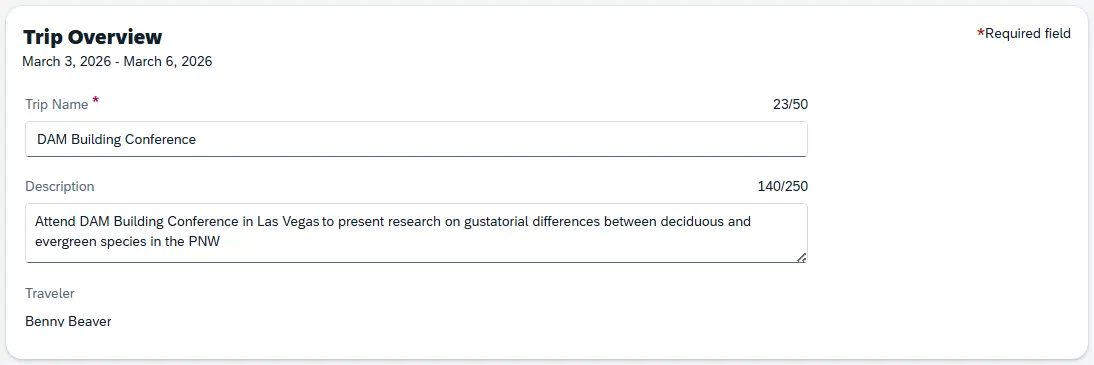
Within the Trip Overview section, you will need to review and edit the Trip Name and Trip Description for your travel. We recommend updating the Trip Name with something you will immediately recognize (i.e., TRP Conference - St Louis 2026), otherwise it will default to the description listed. The Trip Description is optional, but can be helpful for future reference.
Your entire trip itinerary (i.e., flights, car rentals, hotels) that you have booked so far will be displayed in chronological order. Review these travel reservations for accuracy by clicking the downward carat next the Confirmed status of each reservation, and the reservation will expand to show details. You can cancel specific reservations or flights by clicking Cancel within the expanded reservation.
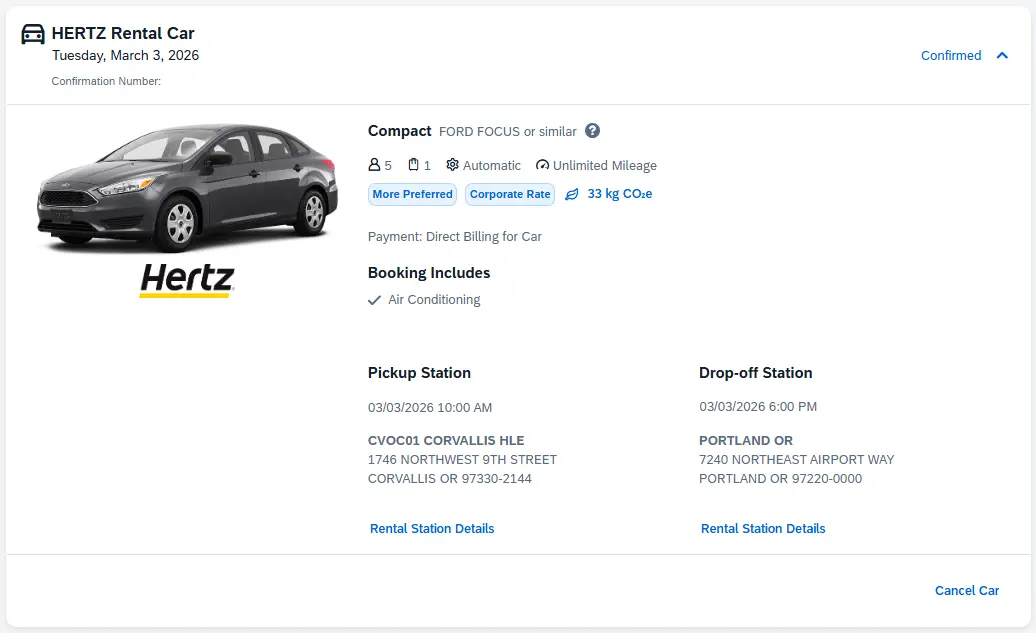
Under the Additional Information section, you will enter in your Pre-Trip Request ID in the field for out-of-state or international travel. If you are traveling in-state, please follow the instructions at the top of the page.

This field is required in order to proceed with confirming your reservations and issuing tickets for your travel.
The Estimated Total Cost section provides an overall total for your travel arrangements, but also breaks down the costs by each reservation. You can expand the downward carat next to a reservation to review a further breakdown of the cost, including estimated taxes and/or fees for that particular reservation.
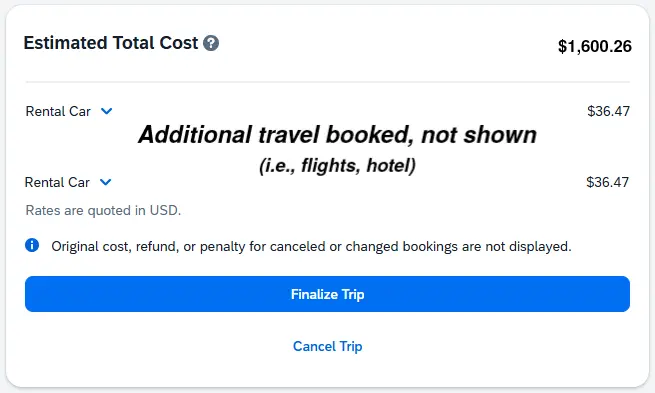
After reviewing the overview, itinerary, additional information, and estimated costs, you can select Cancel Trip if you need to make any large changes for your travel. If no changes or additions are needed, click the Finalize Trip button to confirm your reservations and issue tickets. Within an hour, you will receive an automated email with a copy of your ticketed itinerary that includes information on the items you booked through Concur.
[Return to top]
Related Information
- University Policy 03-140-206: Travel
- Direct Bill Portals for Enterprise/National and Hertz
- How to Set up Your Concur Profile
- How to Create & Submit a Pre-Trip Request
- How to Book Airfare in Concur
- How to Book Hotels in Concur
- How to Book Guest Travel in Concur
- How to Create & Submit a Travel Expense Report