

Concur Instructions: Booking a Hotel in Concur
Table of Contents
Overview
Concur has simplified and streamlined booking hotels. Concur is unable to book hotels at conference rates or discounted rates; please refer to our Quick Tips on Booking Lodging for other options.
[Return to top]
Requirements
-
Legal Name
- Must verify that your legal name is listed in your Concur User Profile
- Is your name listed incorrectly in Concur? HR Support Services can assist you in updating your legal name in Banner. It will take an overnight process for your updated name to load into Concur, so if you need to book travel immediately please reach out to our office.
-
Out-of-State or International Travel
- Must have a fully approved Pre-Trip Request for ALL out-of-state and international travel
- Your Pre-Trip Request ID number is required for booking in Concur
- Locate your Pre-Trip Request ID number before beginning to book travel, as you may not be able to access the request while booking travel
-
Travel to or Within Oregon
- A Pre-Trip Request is not required for travel to, or within, Oregon
- When prompted for a Pre-Trip Request ID number, please follow the instructions on the screen
- A Pre-Trip Request is not required for travel to, or within, Oregon
Step 1: Start the Booking Process
You will now be able to begin the travel booking process, or obtain cost estimates costs for flights, hotels, and rental cars, from the main Concur homepage.
While you will no longer book travel from your approved Pre-Trip Request, a fully approved Pre-Trip Request is required for all out-of-state and international travel. To book travel through Concur and you will need the Pre-Trip Request ID Number in order to confirm and finalize the travel you have selected. Before beginning to book travel, be sure to locate your Pre-Trip Request ID number, as you may not be able to access the request while booking travel. A Pre-Trip Request is not required for travel to, or within, Oregon; please follow the instructions on the screen when prompted for the Pre-Trip Request ID number when booking in Concur.
In the Trip Search widget on the main Concur homepage, make sure that Booking for myself is selected; please note that we have specific instructions for booking guest travel in Concur.
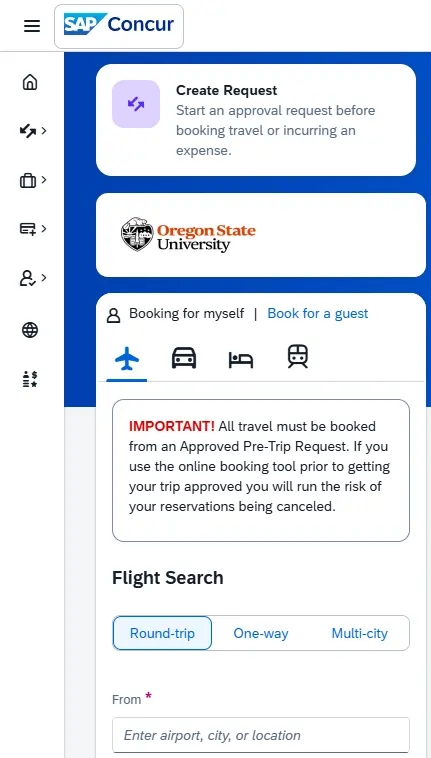
Step 2: Search for a Hotel
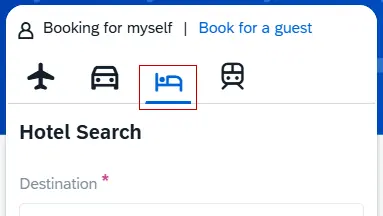
In the Trip Search widget, click the Bed icon to begin the search for your hotel.
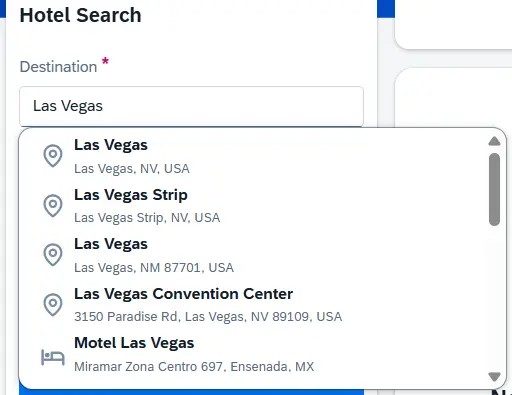
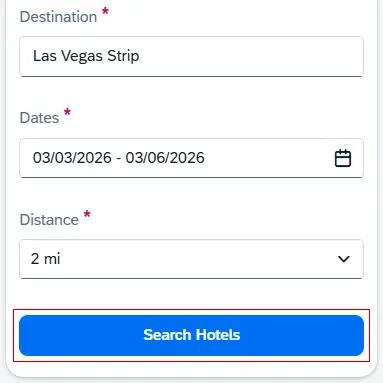
Enter the city or location in the Destination field to help refine a list of options. Predictive text will suggest locations as you enter the first few letters.
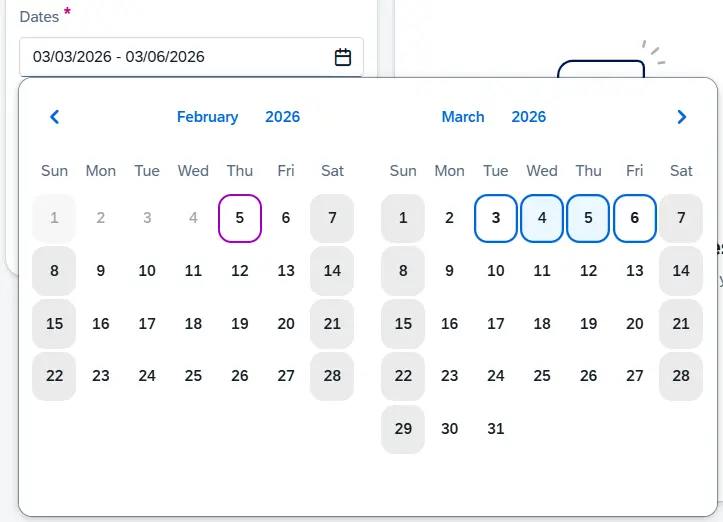
Select the Check-in and Checkout dates. The Check-in and Checkout dates are initially filled in with the dates for today and the next day, respectively.
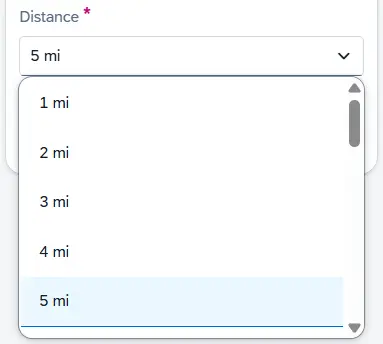
Select a search radius from the Distance dropdown list. The default distance is determined in your Concur user profile.
Once you are ready to review potential travel accommodations, click the Search Hotels button.
Step 3: Select a Hotel
On the Search Results page the available Accommodations can be reviewed.
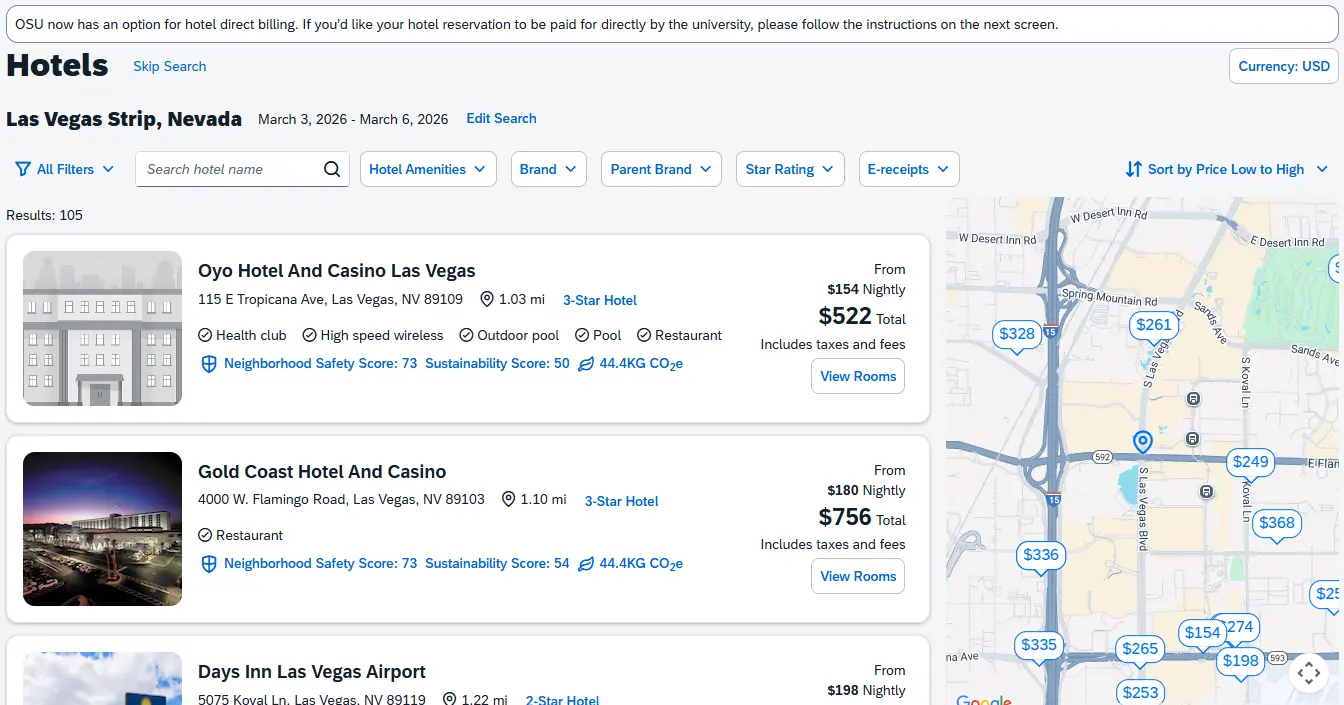
Your search criteria is indicated at the top of the search results page. To edit your search criteria, click Edit Search.

Here you can change the Destination, Dates of your stay, and Distance.

To update your search, make the necessary changes and click Update to refresh your results, or click Cancel to return to your original results.
The hotel search results are listed in the order sent back by the content provider by default. The system will return up to 200 search results and display the first 20. Click View More Results to see the next 20 search results.
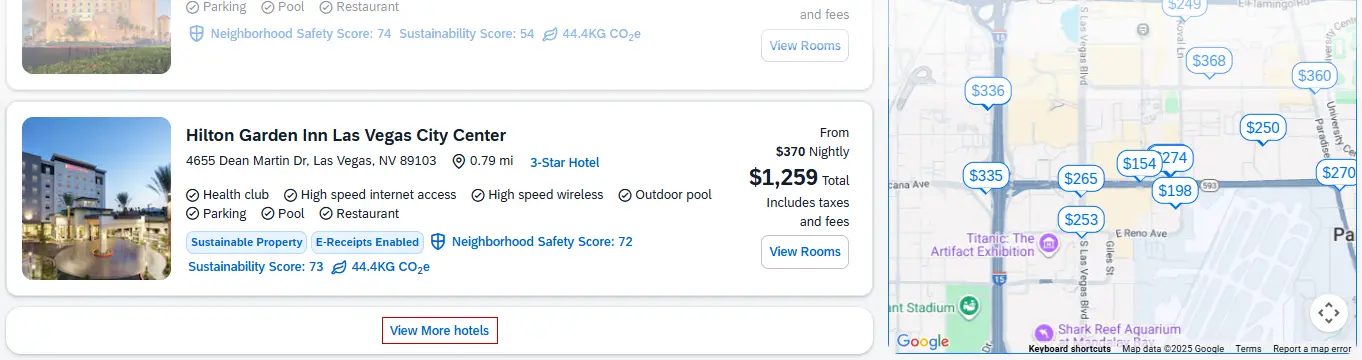
You can narrow down the available results by using filters, sorting, and using the map to locate a suitable hotel for your travel.
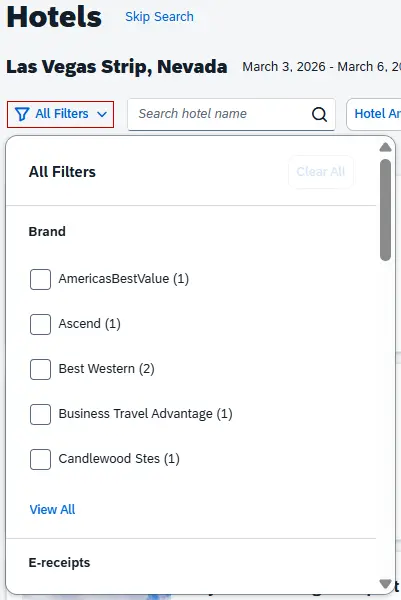
Click All Filters to filter your search results. You can filter results by the following options:
- Brand and Parent Brand
- Hotels that offer E-receipts
- If you have opted into receiving E-receipts in Concur, hotels that offer E-receipts means that the hotel will send an electronic version of receipt/folio data directly to Concur, typically within 48 hours of travel, which can replace paper hotel folios/receipts to make preparing your Travel Expense Report easier and quicker
- Hotel Amenities, including accessible rooms
- Star Rating
- Sustainability Certifications
- For more information on how sustainability data is calculated for SAP Concur, please visit Thrust Carbon.
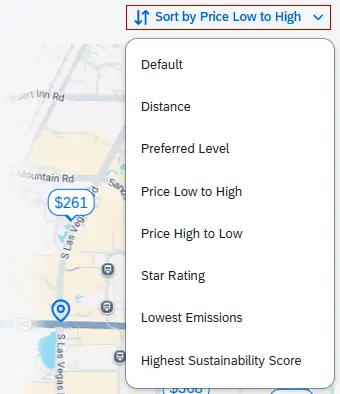
The search results are listed in the order sent back by the content provider by default. You can re-sort results by clicking Sort by and selecting one of the following options:
- Distance: sorts results in increasing distance from the Destination entered in the search criteria.
- Preferred Level: sorts results by Most Preferred, followed by More Preferred, followed by Preferred, based on the configuration settings.
- Price Low to High or High to Low: sorts results in increasing or decreasing price order.
- Star Rating: sorts results in decreasing star rating.
- Lowest Emissions or Highest Sustainability Score
- For more information on how sustainability data is calculated for SAP Concur, please visit Thrust Carbon.
Alternatively, you can locate possible hotel by location using Map View.
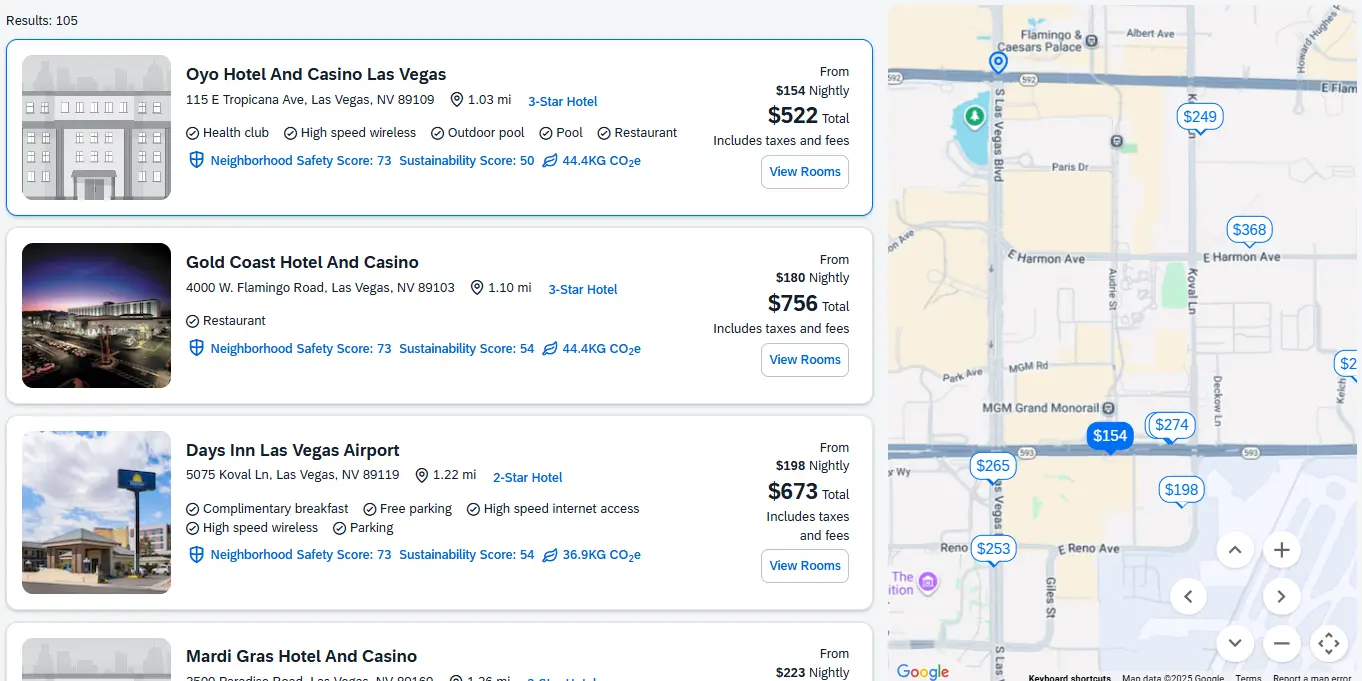
You can view the available hotel search results by location on a pop-up Google map, next to the results list. A speech bubble icon indicates the location and price of the hotel.
Click any icon within the map and the list of search results will scroll to the selected location. If icons overlap, use the zoom function to focus closer on the specific area and separate the icons.
Locate a suitable option for your needs. If you would prefer to select a hotel based on location, click a location/price indicated in the right side map view navigation.
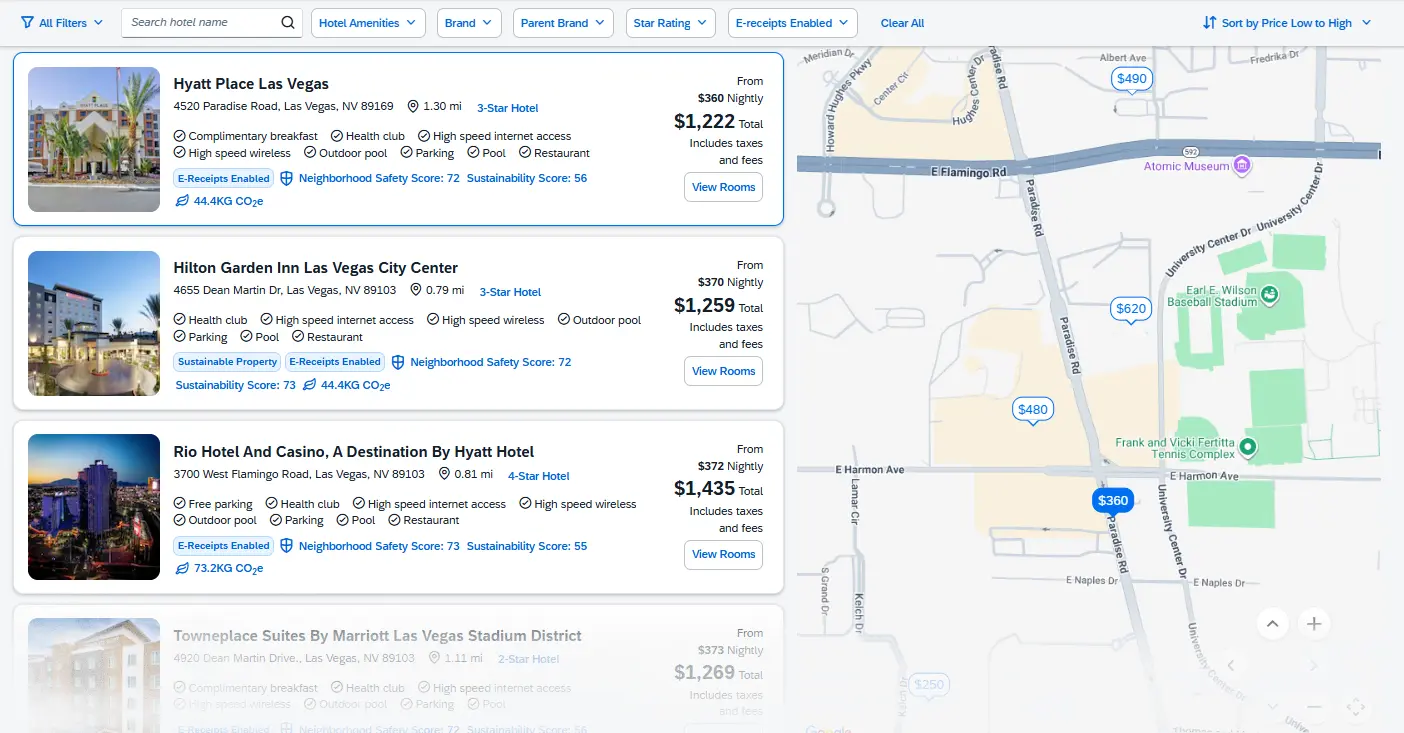
To review the rooms available for a given hotel, click View Rooms and the Rooms page displays.
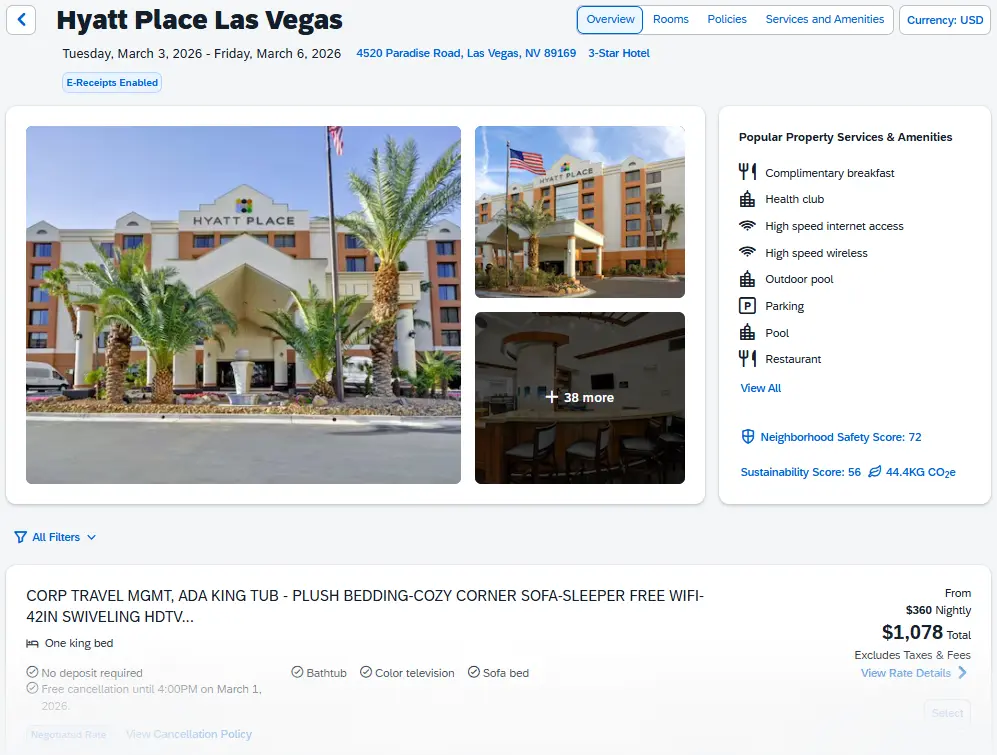
You can further filter available room results from the hotel by clicking All Filters.
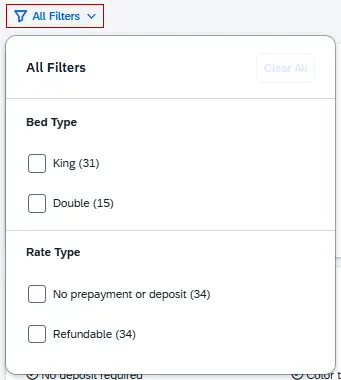
You can filter rooms by the options: No prepayment, Refundable, and Accessible (if available). The number of rooms applicable to each filter option is displayed in parentheses after each filter name, for example, Refundable (34).
If a hotel requires a deposit it will be listed within the hotel room description. If you have a university credit card attached to your User Profile, the deposit will be charged once you finalize your reservation, and you will need to take the T&E card with you when you travel to pay for the remainder of the bill.
Click Rules & Cancellation Policy below the description of the room; a pop-up window will appear with important information such as fluctuations in rates over the stay & cancellation policies.
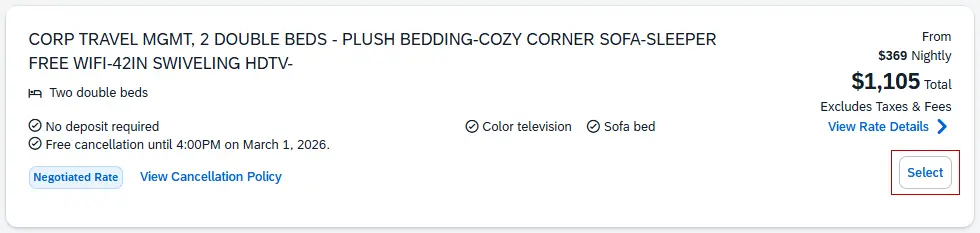
Once you have located a suitable hotel room that meets your travel needs, click the Select button to begin the reservation process.
Step 4: Review and Book Hotel
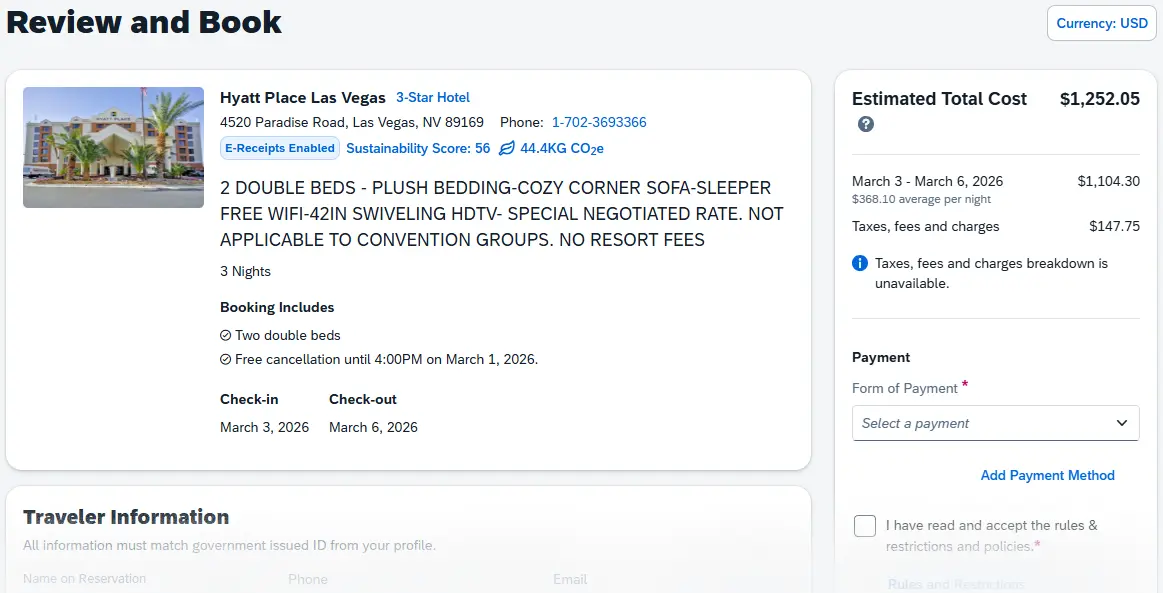
To review your selected hotel accommodations on the web or mobile app, on the Review and Book page, confirm your booking specifications, such as hotel name and location, room amenities, duration of stay, check-in and check-out dates.
The Travel Policy section will display any policy violations within the booking. If your booking includes a violation, you must cite a reason by selecting one from the preconfigured list. If no reasons are pre-configured, you must enter a comment to describe why made your selection.
Continue reviewing the following sections on the Review and Book page.
The top section of the hotel's Review and Book screen provides an overview of the hotel room you have selected, including the type of room you have booked and check-in & -out dates.
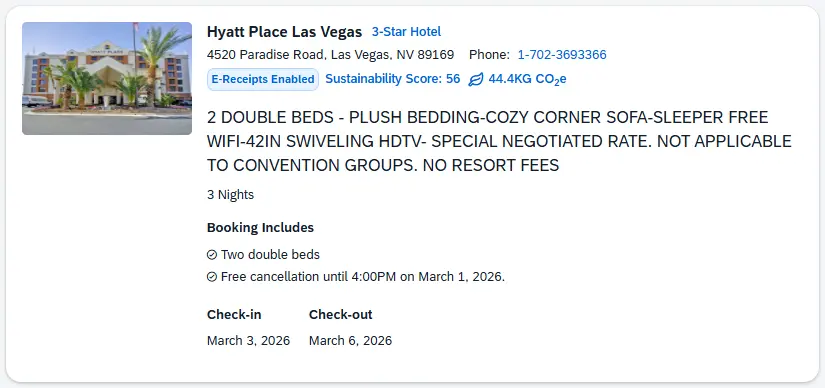
Review the Traveler Information section and confirm your contact information is correct and select an applicable Frequent Traveler Account, if available.
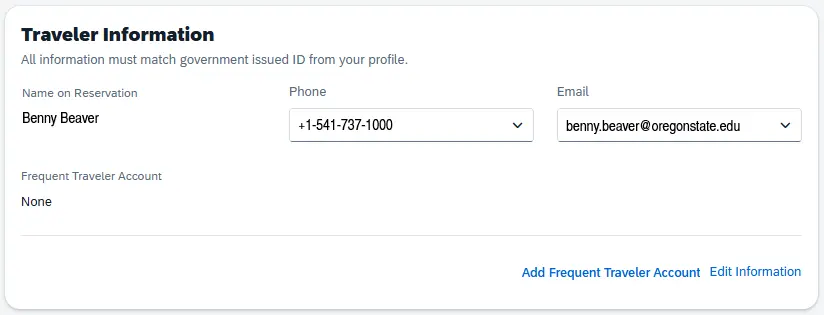
The Traveler Information listed is based on information provided in your Concur user profile. Please ensure your name below matches what is on your government issued ID. You can click Edit Information to edit your contact information through your Concur user profile.
-
Name on Reservation
-
Your First Name and Last Name cannot be edited on this screen.
-
Is your name listed incorrectly in Concur? HR Support Services can assist you in updating your legal name in Banner. It will take an overnight process for your updated name to load into Concur, so if you need to book travel immediately please reach out to our office.
-
-
Phone (Required)
- Select your phone number from the dropdown menu. If you have not provided a phone number in your Concur profile, click Edit Information to add your Work Phone, Home Phone, and Mobile Phone numbers.
-
Email (Required)
- Select your email address from the dropdown menu. We strongly recommended selecting your OregonState.edu email address if you have other personal email addresses associated with your Concur profile.
-
Frequent Traveler Account
- If you have a Frequent Traveler Account associated with the hotel(s) you have selected then your account information will show here. You can click Add Frequent Traveler Account to link your account number with your selected hotel stay.
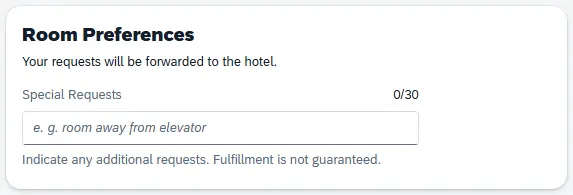
In the Room Preferences section you can provide any information you would like to share with the hotel provider in the Comments field.
If applicable, the Additional Information section displays a list of required fields that must be completed.
In the Accommodation Cost section, review the defined rates, fees, and restrictions.
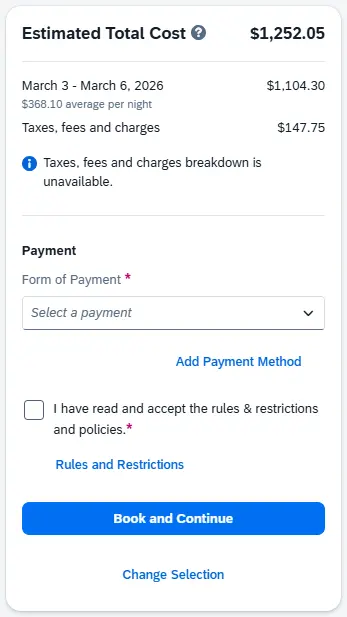
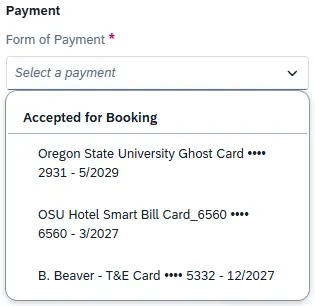
You will need to select one of the following payment forms from the Form of Payment dropdown menu in order to reserve your hotel. We recommend selecting the OSU Hotel Smart Bill Card if you do not have an OSU credit card.
- OSU Hotel Smart Bill Card - OSU will pay your hotel on your behalf if you select this card; the fee is $10.00 per hotel
- Your OSU Credit Card - Your university credit card must be added to your profile for this to be an available option; if you select this you will need to take your card with you when traveling
- Oregon State University Ghost Card - If you do not opt into Smart Bill and you do not have an OSU Credit Card then select this option. You will need to contact the hotel directly to obtain a Credit Card Authorization Form and complete the form. Once complete, send the form to [email protected] for our office to sign and return to the hotel. Refer to our checklist on obtaining a Credit Card Authorization Form from the hotel.
Click the Rates, Rules, and Restrictions hyperlink at the bottom of the page to read more about vendor conditions. These include but may not be limited to cancellation policy, rate rules, accepted credit cards, and other rules and restrictions.
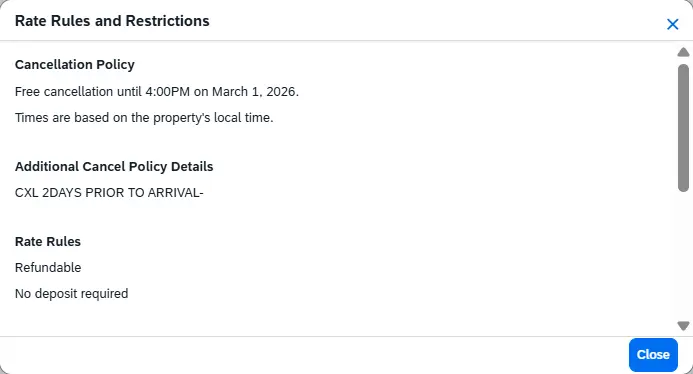
Click Close to return to the Book and Review page.
Check the I have read and agree to the Rate Rules and Restrictions checkbox.
Click Book and Continue, or to revise your hotel selection, click Change Selection.
[Return to top]
Step 5: Continue Booking Travel or Finalize & Confirm Your Booking
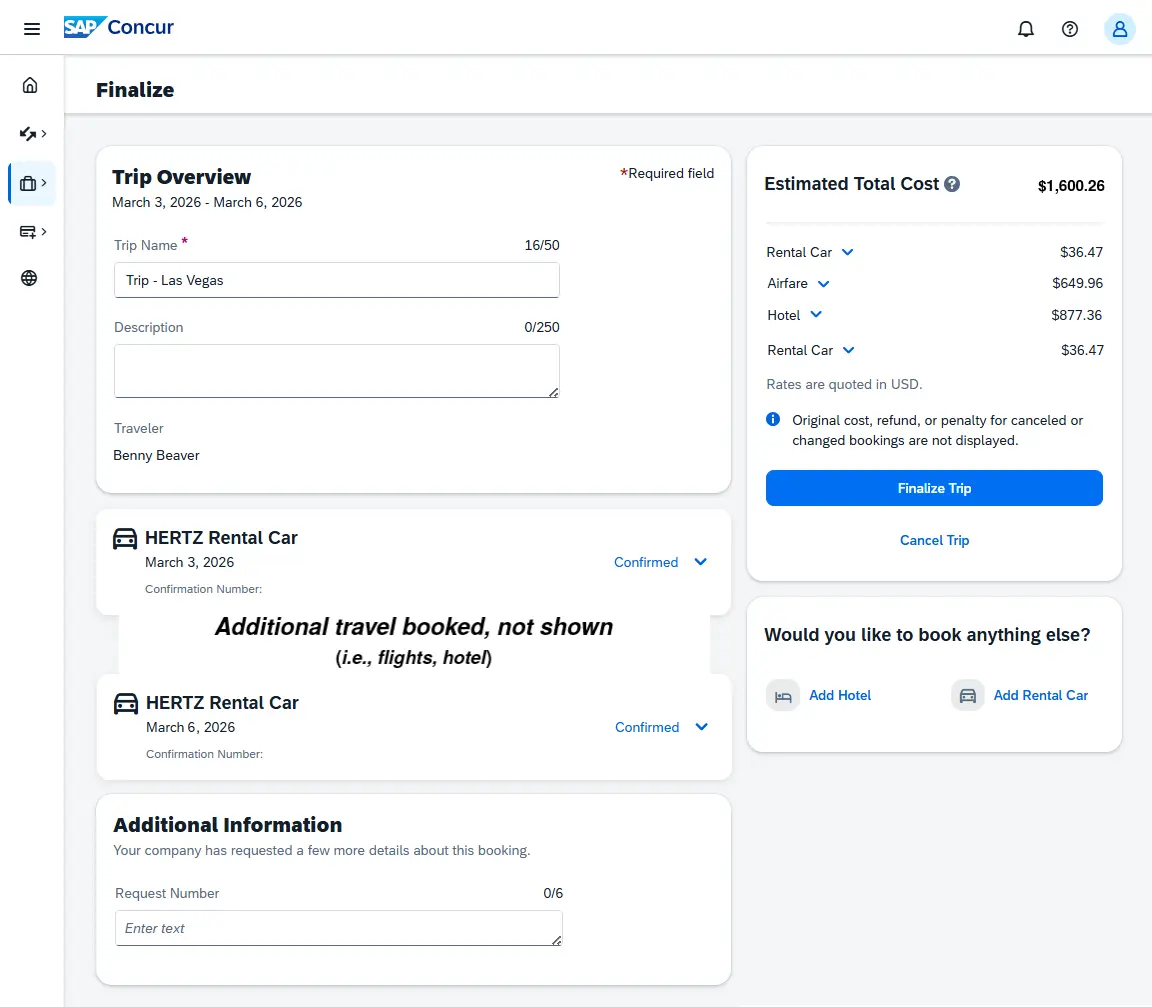
After clicking the Book and Continue button, you will be taken to the Finalize screen. On this screen are the:
- Trip Overview section
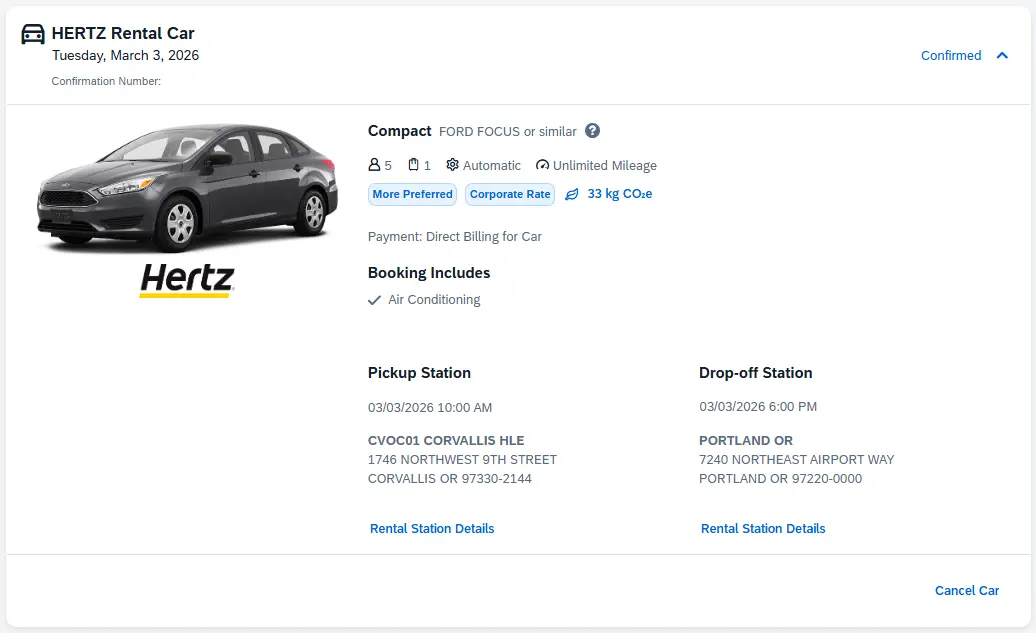
- The entire trip itinerary (i.e., flights, rental cars, & hotels)
- Additional Information section
- Estimated Total Cost section, and
- Options to Add Hotel and Add Rental Car, if needed
Need to Add Another Hotel or Rental Car?
On the Finalize screen you have the option to add a hotel and/or rental car to your trip. If you need to add a flight, you can add the flight separately during a different travel booking session.
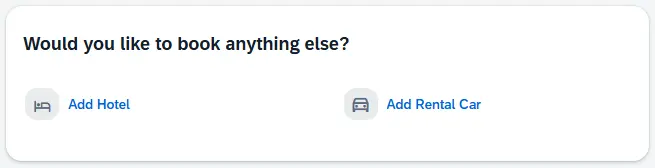
Click the Add Hotel link or the Add Rental Car link to add a reservation to your trip. Below are instructions to walk you through the process of booking those travel arrangements in Concur:
Ready to Finalize & Confirm Your Trip?
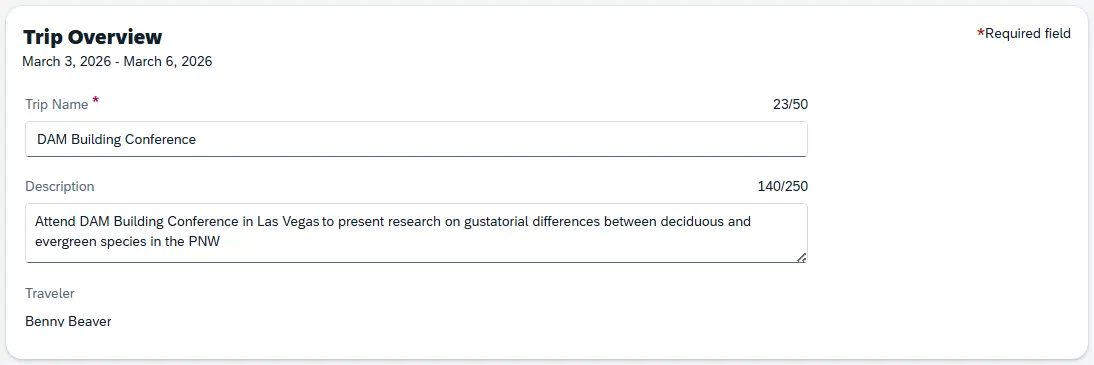
Once you are done making your travel selections in Concur, you will need to review and update the Finalize screen before your tickets will be issued. Your entire trip’s itinerary will be displayed on this screen: the trip overview, your trip’s reservations in chronological order (i.e., flights, car rentals, hotels) & confirmation numbers, and total estimated cost.
Within the Trip Overview section, you will need to review and edit the Trip Name and Trip Description for your travel. We recommend updating the Trip Name with something you will immediately recognize (i.e., TRP Conference - St Louis 2026), otherwise it will default to the description listed. The Trip Description is optional, but can be helpful for future reference.
Your entire trip itinerary (i.e., flights, car rentals, hotels) that you have booked so far will be displayed in chronological order. Review these travel reservations for accuracy by clicking the downward carat next the Confirmed status of each reservation, and the reservation will expand to show details. You can cancel specific reservations or flights by clicking Cancel within the expanded reservation.
Under the Additional Information section, you will enter in your Pre-Trip Request ID in the field for out-of-state or international travel. If you are traveling in-state, please follow the instructions at the top of the page.

This field is required in order to proceed with confirming your reservations and issuing tickets for your travel.
The Estimated Total Cost section provides an overall total for your travel arrangements, but also breaks down the costs by each reservation. You can expand the downward carat next to a reservation to review a further breakdown of the cost, including estimated taxes and/or fees for that particular reservation.
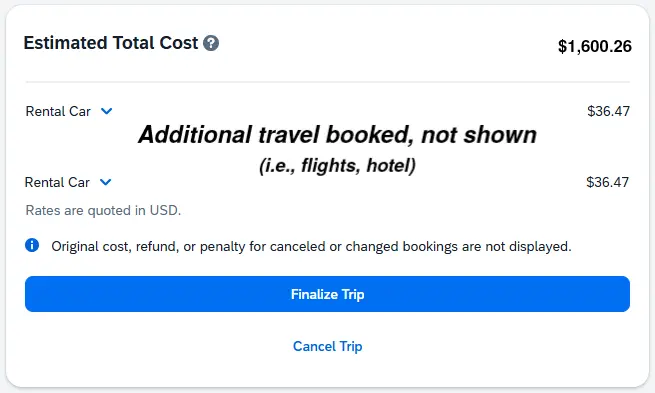
After reviewing the overview, itinerary, additional information, and estimated costs, you can select Cancel Trip if you need to make any large changes for your travel. If no changes or additions are needed, click the Finalize Trip button to confirm your reservations and issue tickets. Within an hour, you will receive an automated email with a copy of your ticketed itinerary that includes information on the items you booked through Concur.
[Return to top]
Related Information
- University Policy 03-140-206: Travel
- How to Set up Your Concur Profile
- How to Add Your University Credit Card to Your Concur Profile
- How to Create & Submit a Pre-Trip Request
- How to Book Airfare in Concur
- How to Book Car Rentals in Concur
- How to Book Guest Travel in Concur
- How to Create & Submit a Travel Expense Report